
Admin Tab | Pools
- Pools are groups of Talent categorized based on specific criteria such as language proficiency or skills
- Pools can be combined with an escalation process to create customized workflows for routing job requests, allowing for prioritization of worker groups
- Pools can be created and managed through the Admin panel on the WorkN platform on the Enterprise level
When is a Pool Used?
Pools do not directly have an action associated with them. In order to use a Pool, they must be tied to an Escalation. Escalations allow multiple Pools to be sequenced so that certain Talent groups can be prioritized to receive offers first.
Alternatively, a Pool can be manually used as a filter when using the Pick List.
How to Create a Pool
- Log in to an admin account on the WorkN portal
- Access the Admin tab and select Pools. If the Pools tab is not available, consult an admin regarding account permissions
- Select the desired Enterprise that the Pool will apply to in the dropdown
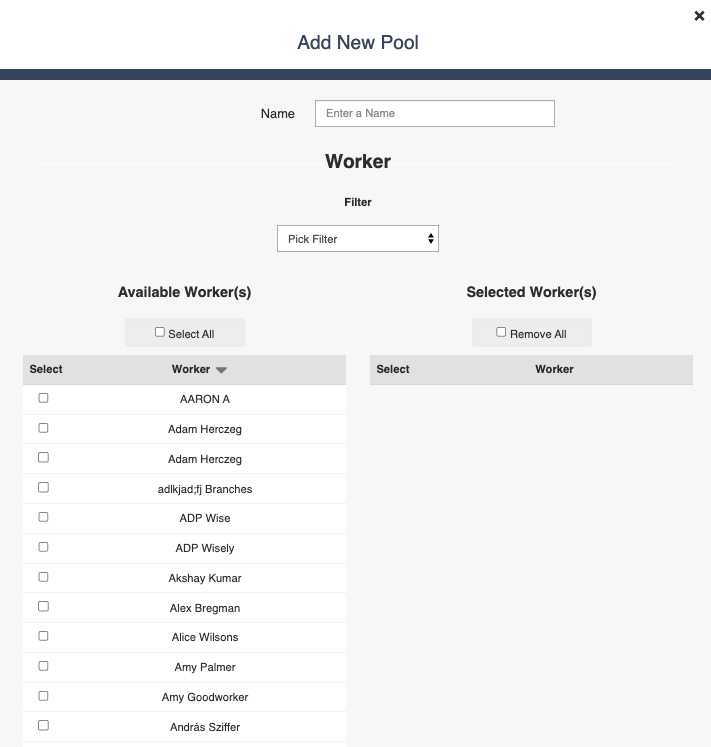
- Select Add Pools on the right hand side - this will populate the form
- Name the Pool (ex. All Stars) and choose whether to include only contractors or include customer full-time staff (please contact your Relationship Manager for more info on adding customer staff), and then apply any filters such as ratings or skills to see a list of all available Talent that match the search
- Click the checkbox next to any available Talent to include in the Pool. This will move Talent over to the Selected Worker(s) side of the page. If a large quantity of Talent meet the search criteria, additional pages can be viewed without losing progress on the Talent already selected
- Finally, select Add Pool when all applicable Talent have been added. This Pool can now be added to an Escalation
Updated about 1 year ago