
Workers | Overview
Filtering Workers
Overview
Filtering workers allows you to refine worker profiles based on specific criteria. This feature is particularly useful for identifying workers based on their login status and creating targeted adoption campaigns.
Key Features
- Login Status Filtering: Identify workers who are currently logged in, logged out, or have never logged in
- Targeted Campaigns: Use filters to create adoption campaigns focused on specific groups of workers
- Export Functionality: Export filtered worker lists for campaign purposes
How to Access
- Navigate to the Workers tab
- Click on the "Pick Filters" dropdown
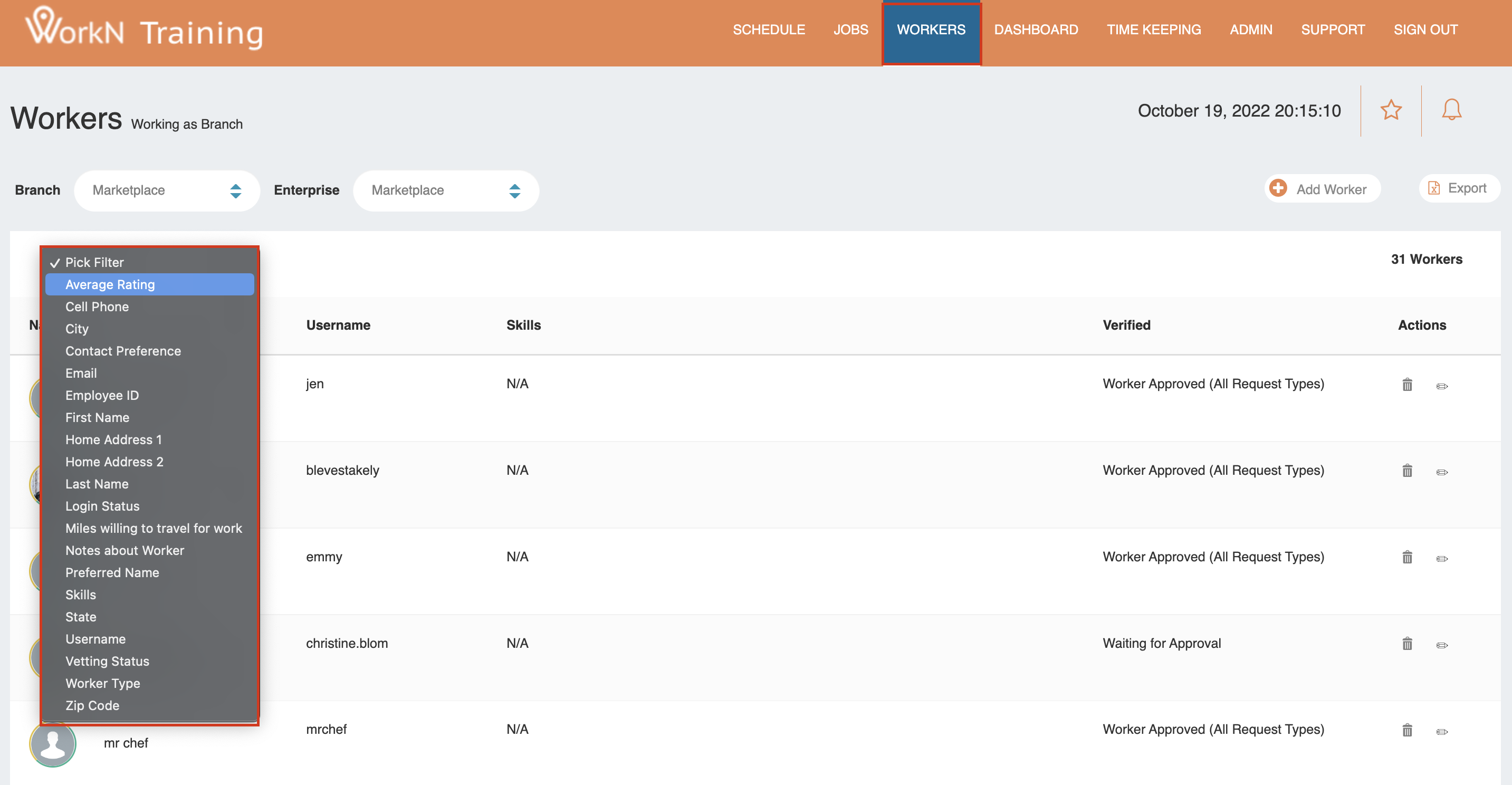
Login Status Filter
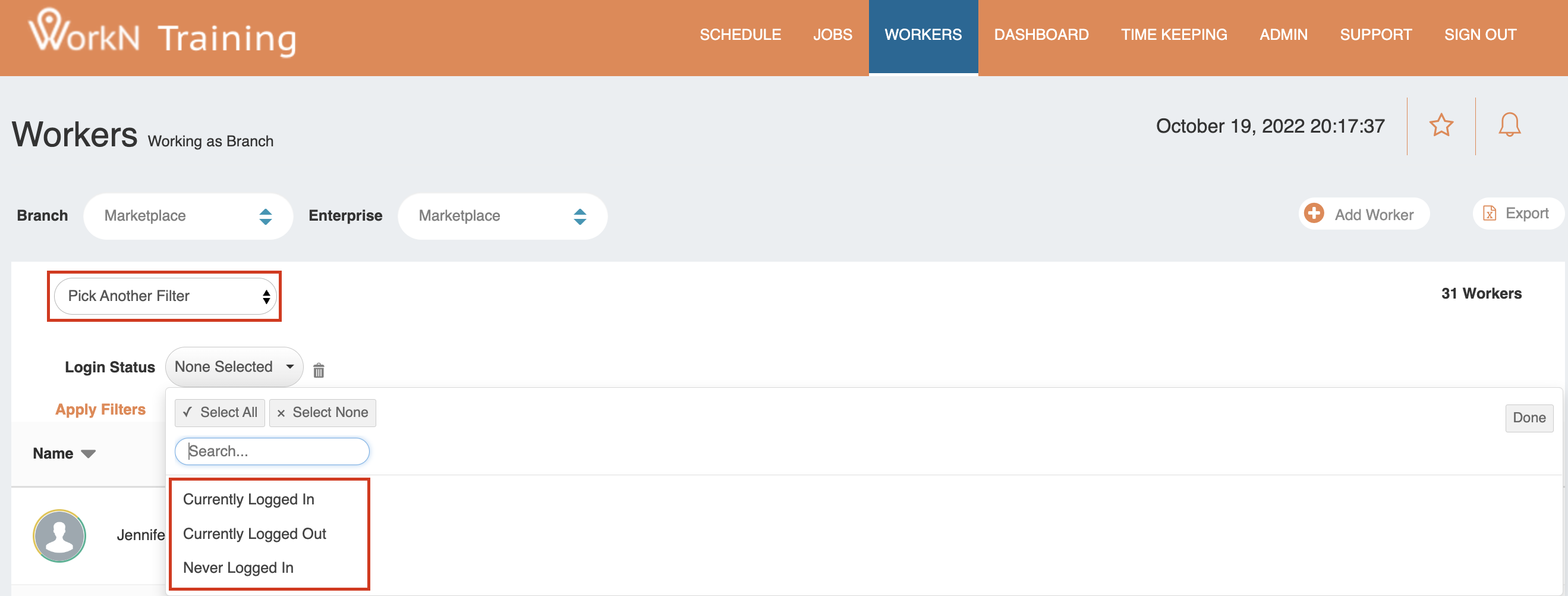
The Login Status filter enables you to segment workers based on their app engagement:
- Currently Logged In: Workers actively using the app
- Logged Out: Workers who have used the app but are not currently active
- Never Logged In: Workers who have never accessed the app
Visual Status Indicators
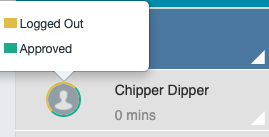
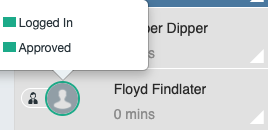
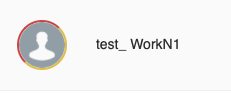
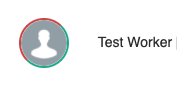
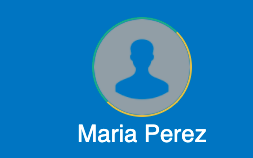
Worker profile pictures include colored rings that indicate their status:
-
Logged Out/Approved: Standard ring around profile
-
Logged In/Approved: Green ring indicating active status
-
Never Logged In/Waiting for Approval: Yellow ring for pending workers
-
Never Logged In/Approved: Gray ring for approved but inactive workers
-
Logged In/Waiting for Approval: Blue ring for active pending workers
Using Filters for Campaigns
Filtering by login status is particularly effective for:
- Adoption Campaigns: Target workers who have never logged in or are frequently logged out
- Re-engagement Efforts: Focus on previously active workers who have become inactive
- Performance Analysis: Understand engagement patterns across your worker base
Export Functionality
Use the export button in the top right of the worker profile list to download filtered results for use in external campaign tools.
Removing Filters
To remove an active filter, simply click the trashcan icon next to the filter criterion.
How to Add a Worker
Overview
Workers can exist at either the marketplace level or enterprise level, depending on your access requirements.
Adding Workers
Workers can be added at the marketplace level to view job orders from all enterprises. If workers should be restricted to only see jobs from one enterprise, they must be added at the enterprise level.
How to Add a New Worker
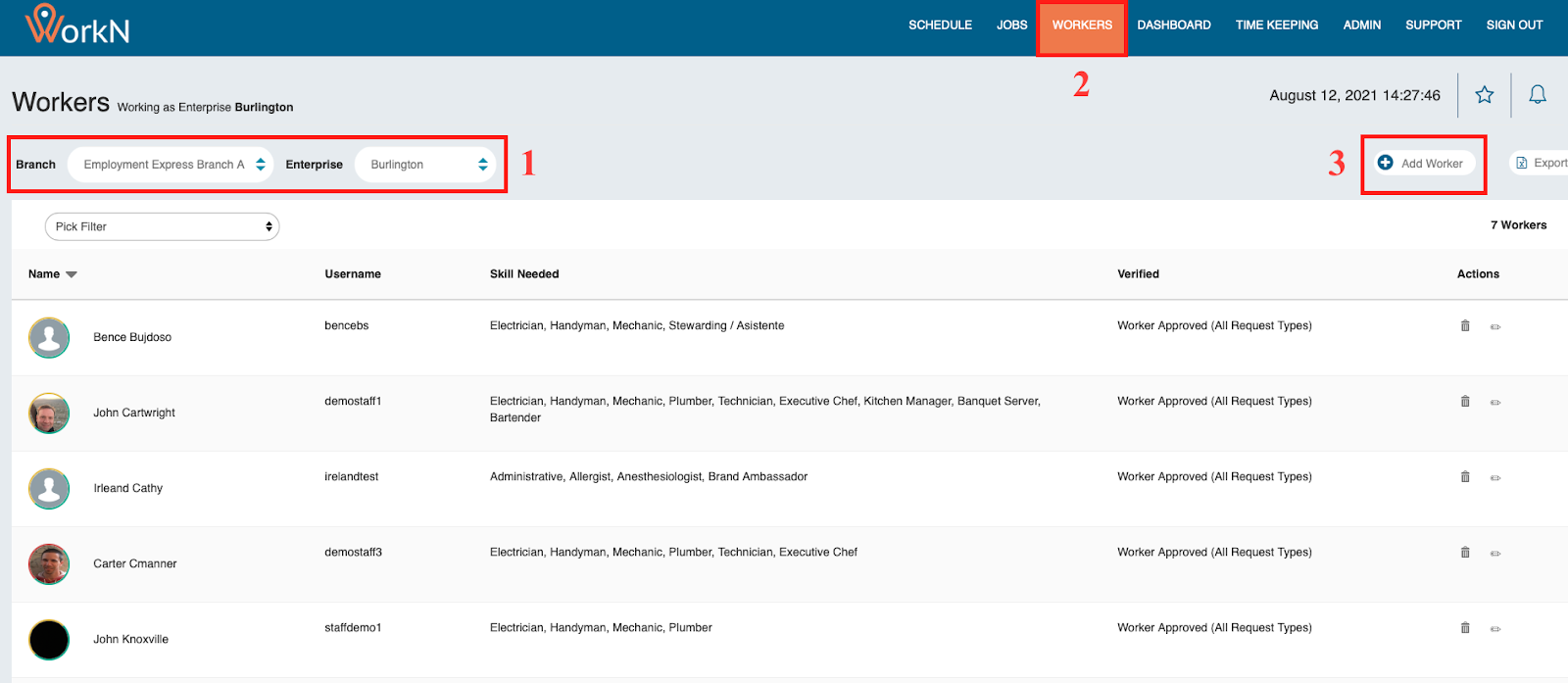
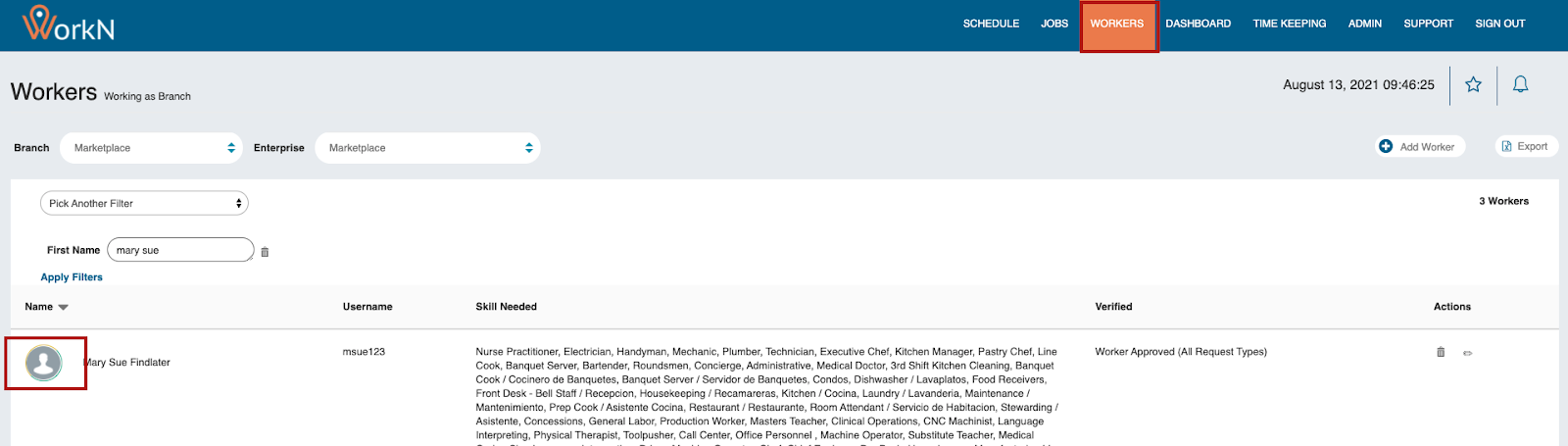
- Log into your Marketplace and navigate to 'Workers' in the top right
- Click '+Add Worker'
- Complete all required fields (marked with *) to create the worker profile
- Select the appropriate Vetting Status:
Vetting Status Options
-
Waiting for Approval: The worker has applied through the app and is waiting for you to vet them before they can begin receiving job notifications. Workers in this status receive SmartLinks via SMS only (not email).
-
Worker Approved (All Request Types): This is the only status where workers are set to active and can receive job opportunities. Workers in this status receive SmartLinks via both SMS and email.
-
Worker Denied: This status prevents workers from seeing
How to Blocklist a Worker
Overview
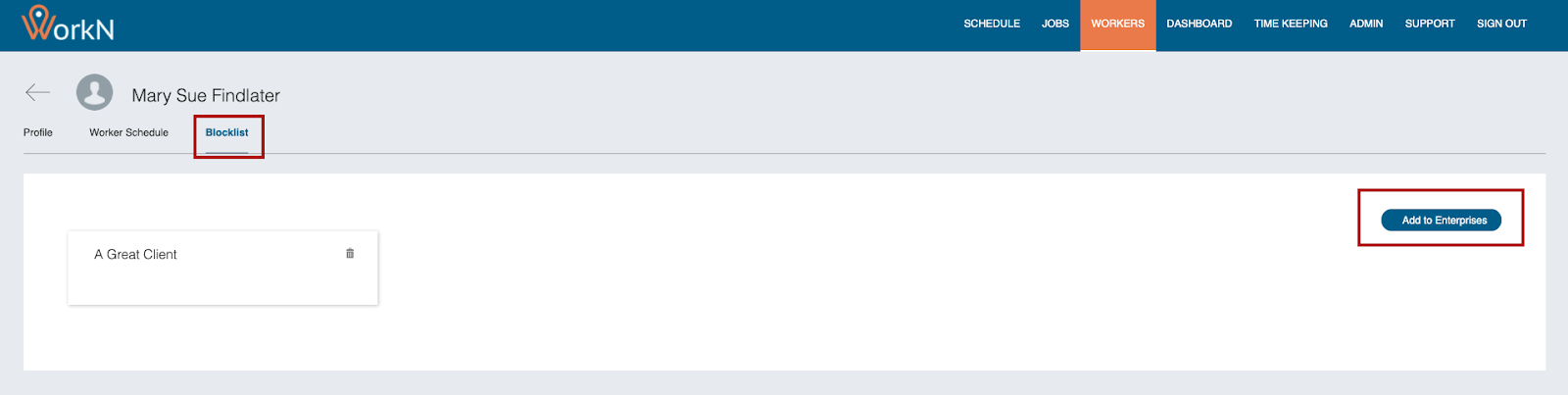
Workers can be blocklisted against enterprises (clients). This functionality can be managed from either the Worker profile or the Enterprise profile on the WorkN front end. Once a worker is blocklisted, they will not receive future job orders from that enterprise, even if they qualify based on matching logic.
Note: If you do not see this option, please reach out by raising a request within Zendesk.
How to Access
- Log into your Marketplace
- Navigate to 'Workers' in the top right
- Click on the circle profile icon of a worker
- Look for the "Blocklist" tab
- Click 'Add to Enterprise' and select the enterprise you would like to block the worker from by checking the appropriate box
- Click 'Save'

How to Remove a Blocklist
To undo a blocklist at a later time:
- Follow the above
Updated about 1 year ago