
Admin Tab | Job Templates
Job templates can be created within your admin panel on the web. Here you will determine which skills/positions, locations, and meeting places are defined in a specific job type. Job Templates can be reused when scheduling a job to help auto-populate the fields needed to create a job.
Visibility: This ability is available on the marketplace level and enterprise level.
How to Create Job Templates
Steps to Access:
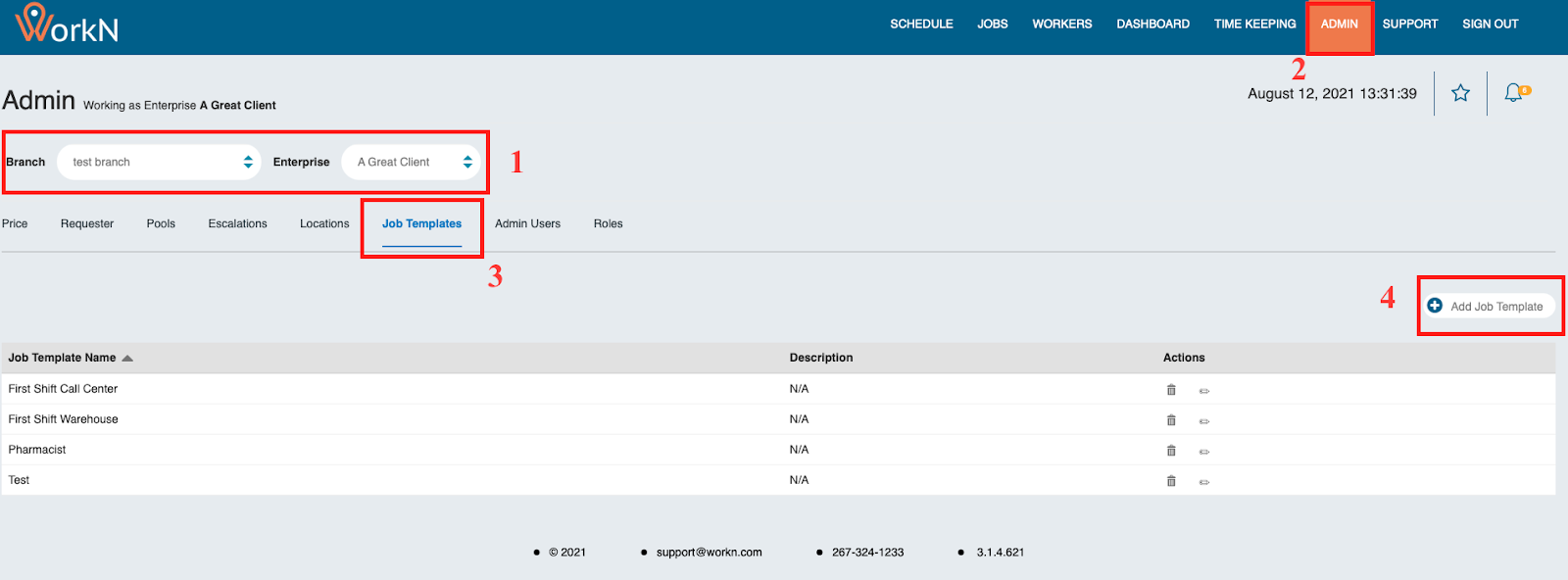
- Once logged into your Marketplace, drop down to the branch level > enterprise level where you want to add this job template
- Navigate to Admin in the top right
- Click on Job Templates sub-tab
- Click +Add Job Template
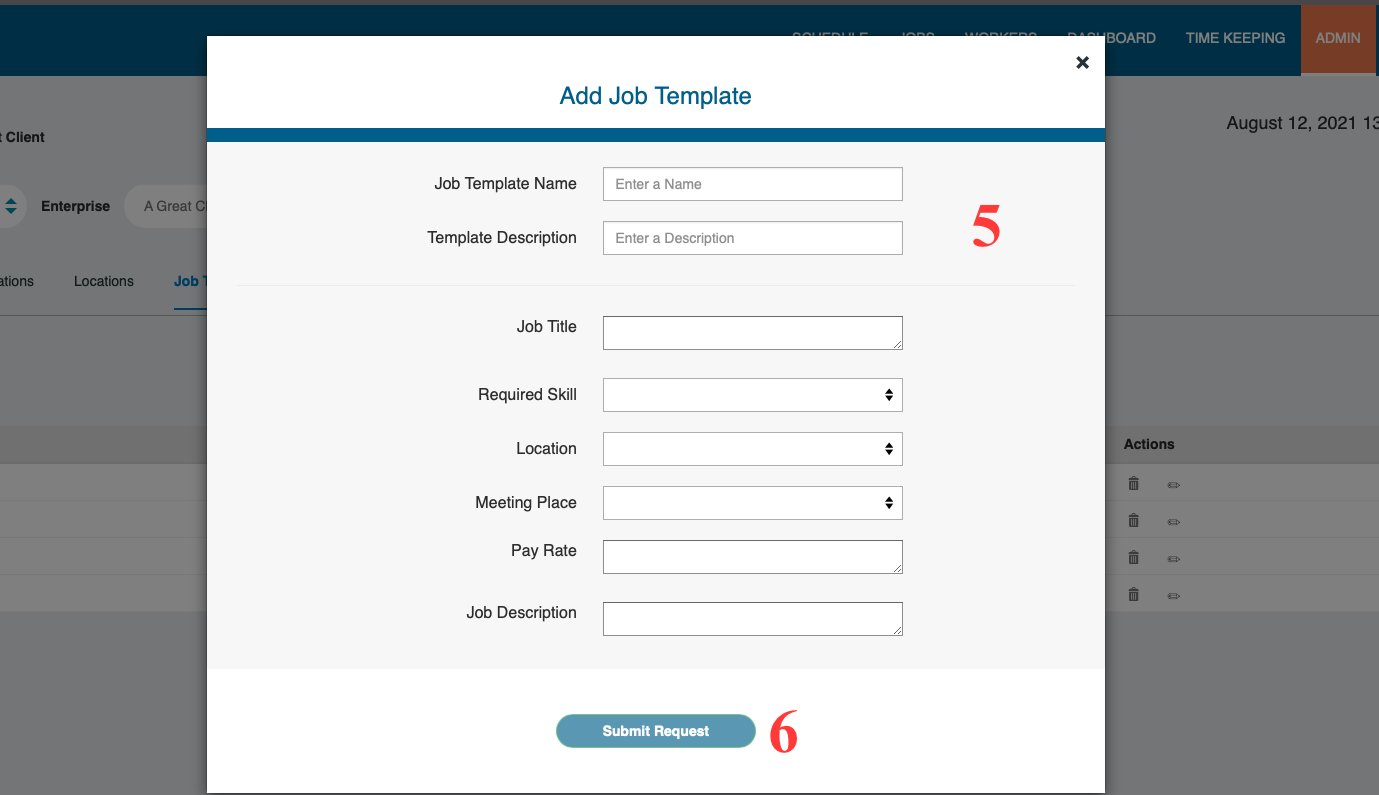
- Complete the fields needed to create your job template
- Select Submit Request to save
How to Use Your Job Template
Steps to Access:
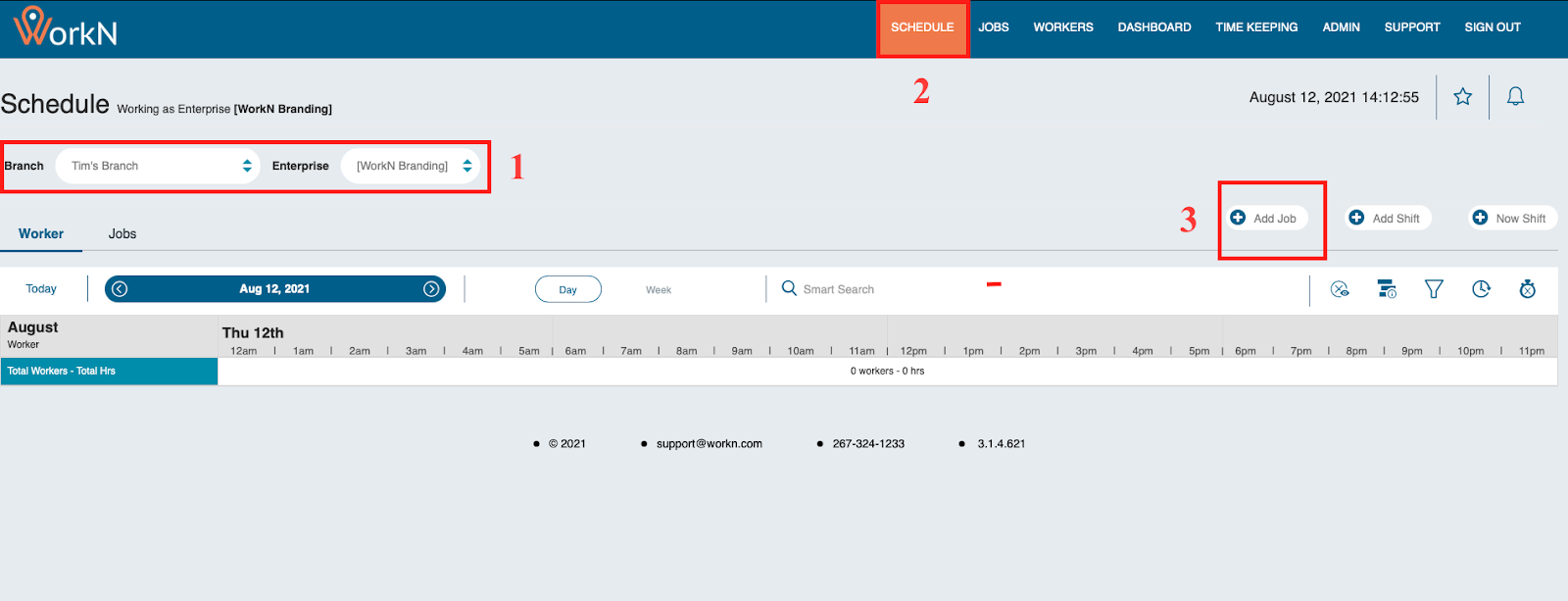
- Once logged into your Marketplace, drop down to the branch level and enterprise level where you want to create your job order
- Navigate to Schedule in the top right
- Click on Add Job
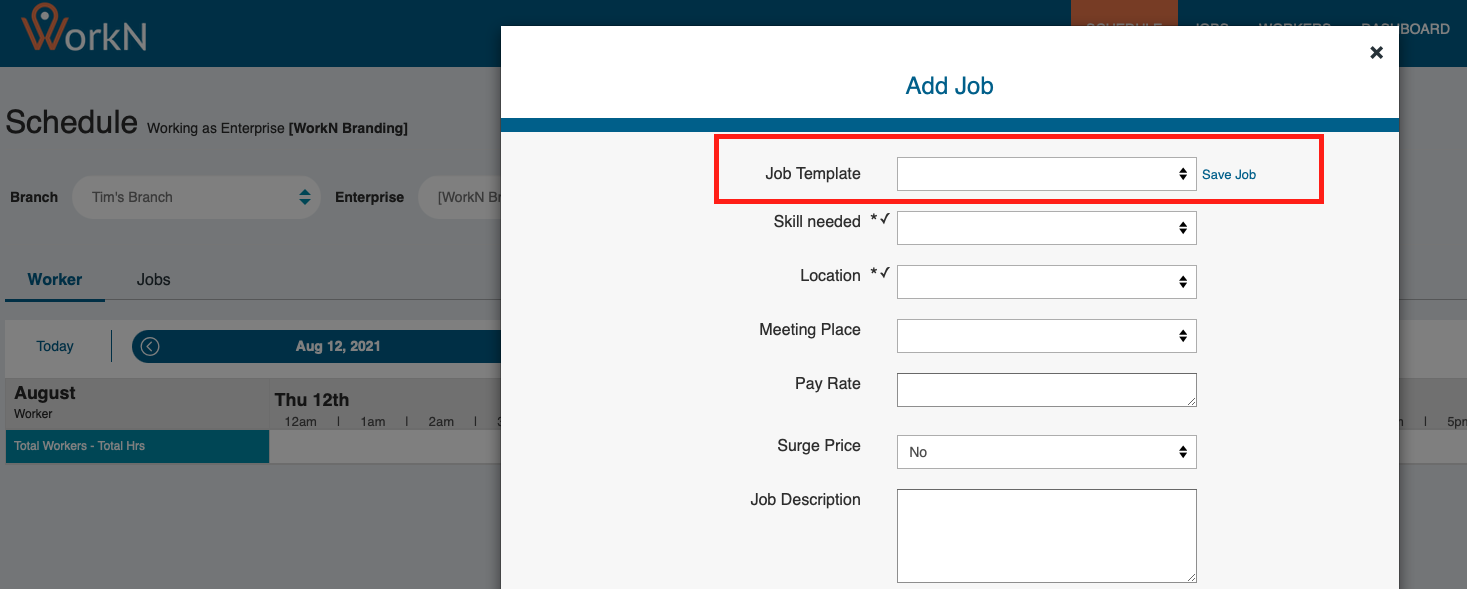
- Using the Job Template field, you can drop down to select the prebuilt job template you would like to use
- The prefilled fields will auto-populate and customization on the job order can be done from there
How to Add a Job Template from the Job Order
Steps to Access:
- Once logged into your Marketplace, drop down to the branch level > enterprise level where you want to create your job order
- Navigate to Schedule in the top right
- Click on Add Job
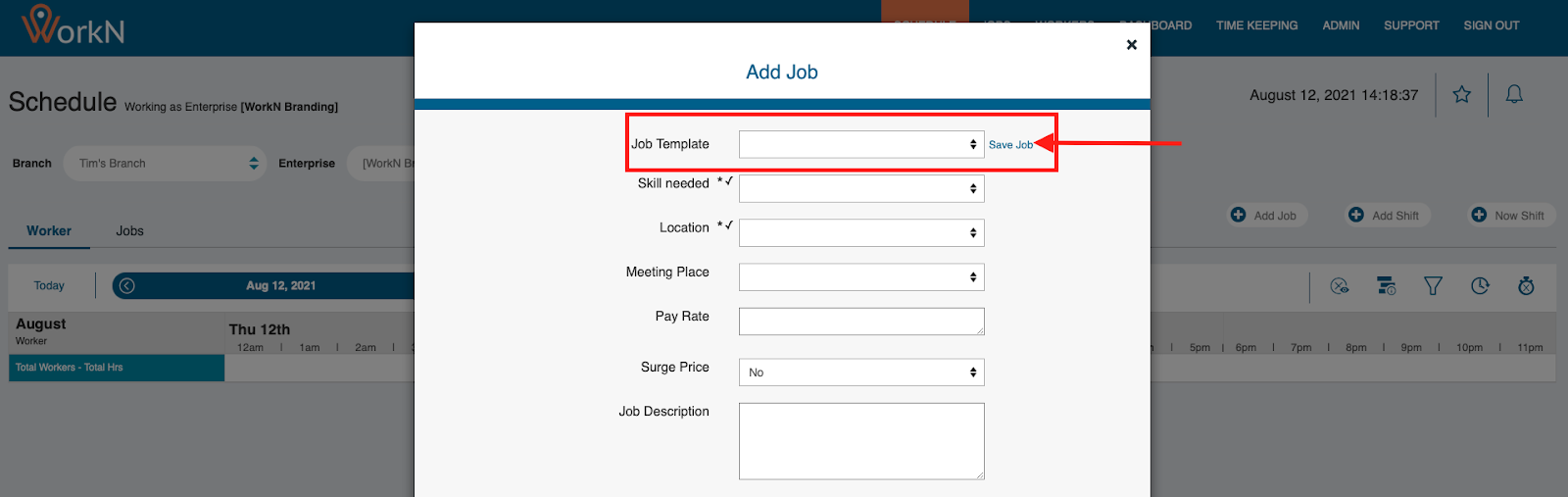
- When in the job order form, you can create your job order details by filling out the fields you need
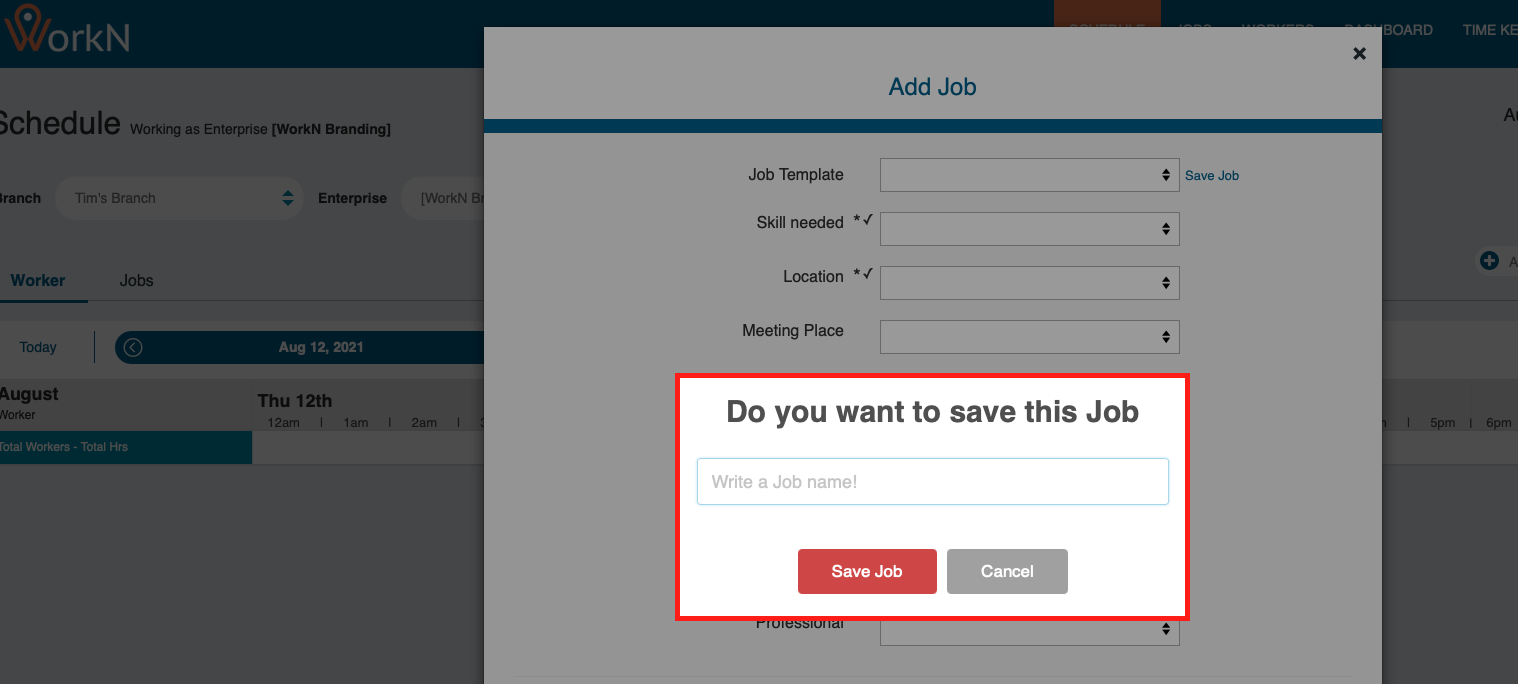
- If you decide this should be a job template saved for future use, you can click Save Job next to the Job Template dropdown to create a new job template
Updated about 1 year ago