
Admin Tab | Escalations
An Escalation is a customized workflow that allows administrators to determine how much time high-priority Pool members have to accept jobs before offers are extended to lower-priority Pools. If no Escalations are configured for an Enterprise, the standard matching process applies.
Key Benefits
Customized Workflow for Priority Management
Escalations enable administrators to define timeframes for high-priority Pool members to accept job offers before lower-priority Pool members are considered. This ensures critical roles or specific worker groups receive first priority for job assignments.
Flexible and Strategic Job Routing
Escalations activate whenever a job session is requested. Administrators can create different Escalations to prioritize specific Pools based on various criteria like location, position, or ratings. By configuring appropriate orders, response times, and Pool assignments, administrators can dynamically route job offers to the most suitable workers.
Effective Trial/Demo Environment Management
Even in trial environments, proper escalation setup is crucial. Administrators should create a "Catch All" Pool for testing purposes with corresponding Escalations that have extended response times. This prevents test runs from affecting the broader worker database.
Trial/Demo Environment Setup
Critical Consideration: Trial or Demo Enterprises remain connected to the worker database.
Recommended Setup Process
- Create a "Catch All" Pool containing only designated test workers
- Create an Escalation with:
- Very low Order (e.g., 1000)
- Only the "Catch All" Pool included
- Extended response time (e.g., one week)
- This prevents trial runs from broadcasting to all providers
Important: Do not include "All Providers" in trial Escalations, as this will notify real workers.
When Escalations Are Used
Escalations activate automatically whenever a session is requested. During initial configuration, create Escalations to prioritize specific Pools based on request criteria.
What Happens Without Escalations
If no Escalations exist, approved job requests automatically broadcast to all workers matching the requested criteria. This is perfectly acceptable for enterprises that don't require advanced routing.
Creating Escalations
Prerequisites
- Escalations are Enterprise-level only (matching their corresponding Pools)
- Appropriate admin permissions required
- Understanding of job routing impact essential
Setup Process
-
Log into the WorkN web portal
-
Access Admin tab and select Escalations
-
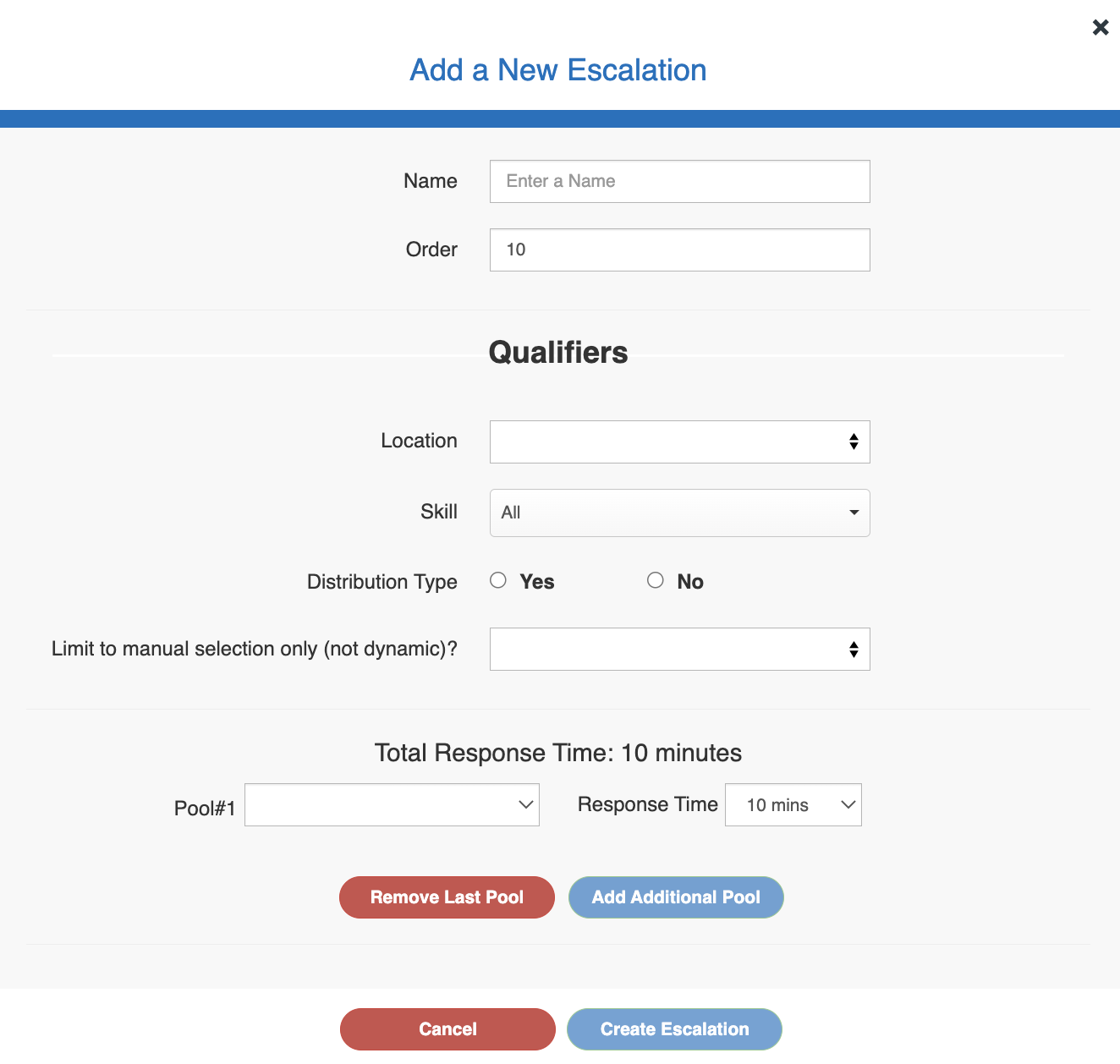
Click 'Add Escalation' to open the configuration form
-
Configure matching criteria for incoming requests

-
Leave fields blank to apply to any choice (this won't ignore criteria)
-
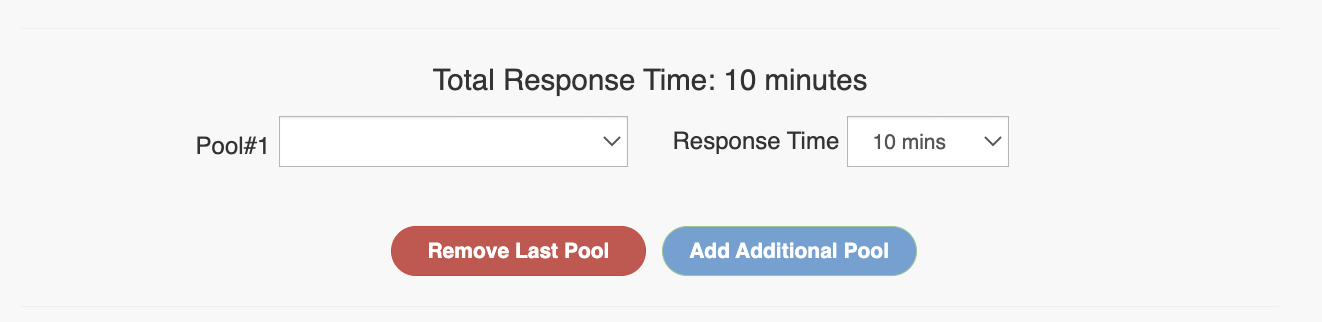
Add first Pool with designated response time (10 minutes is common)
-
Add additional Pools with their response times
-
Set final Pool response time to at least match job expiration time
Critical Warning: Escalations are powerful tools. Do not create them without understanding their job routing impact. Mismanaged Escalations can result in fewer workers receiving offers than intended.
Configuration Details
Qualifiers
Choose criteria this Escalation will match against:
- Location
- Skill requirements
- Distribution type
Pool Sequence
- First Pool: Highest priority workers
- Subsequent Pools: Fallback options
- Final Pool: Often "All Providers" or comprehensive backup
Response Times
Set appropriate timeframes for each Pool level, ensuring the final Pool has sufficient time before job expiration.
Order Priority

Assign Order numbers to indicate priority. Lower numbers (e.g., 1) have higher priority than higher numbers (e.g., 100). If Escalations have overlapping criteria, the highest order (lowest number) will be selected.
Advanced Configuration
Dynamic vs. Manual Escalations
By default, Escalations run automatically when criteria match. Dynamic operation means job requests automatically route through matching Escalations based on priority order.
Price Record Integration
Escalations automatically match against corresponding Enterprise-level price records. The highest order (lowest number) matching record will be selected. If no Enterprise matches exist, Marketplace pricing rules apply.
Use Case Examples
Location-Based Escalation
Prioritize specific worker groups based on job location:
- Create location-specific Pool (e.g., "Manhattan Favorites")
- Set Escalation criteria for specific location
- Configure Pool sequence with appropriate response times
- Set high priority order (e.g., Order = 2)
Rating-Based Escalation
Route jobs based on worker performance ratings:
- Create rating-specific Pools (e.g., "≥4 Star Workers", "≥3 Star Workers")
- Configure Escalation for position type
- Set Pool sequence from highest to lowest rated workers
- Include "All Providers" as final fallback
Best Practices
- Clear Purpose: Define specific goals for each Escalation
- Logical Sequencing: Order Pools from most to least preferred
- Adequate Response Times: Allow sufficient time for each Pool level
- Comprehensive Coverage: End with "All Providers" unless intentionally limiting scope
- Priority Management: Use Order numbers strategically to manage overlapping criteria
- Regular Review: Monitor Escalation performance and adjust as needed
Escalations provide powerful workforce allocation control when properly configured and managed.
Updated about 1 year ago