Admin Tab | Customize Messaging
This article provides instructions on accessing and utilizing the custom communications feature, allowing users to tailor templates for communication with talent through email, text, or app notifications. It outlines steps for enabling role permissions, editing templates for emails, text messages, and app notifications, along with best practices for each communication type.
Key Takeaways
- How to enable role permissions for custom communications for admin users
- How to edit email templates
- How to edit text templates
- How to edit app notifications
- Best practices for each communication type
How to Access
Navigate to: Marketplace / Marketplace Level > Admin tab
Role Permissions
Navigation: Marketplace > Admin tab > Roles > Click the pencil icon next to each role you would like to have access to this feature.
By default, the Super User Role will have custom communications turned on.
To add this permission to other roles:
- Custom Communication - Email
- Custom Communication - List View
- Custom Communication - Text
Note: Any time a new role permission is turned on, you must log out and log in to be able to perform the new function.
Editing Custom Communications
Navigation: Marketplace Level > Admin Tab > Customize Messaging
Template Categories
There are three categories of messaging that can be customized:
- Emails
- Text Messages
- App Notifications
To edit a specific template, click on the desired template to open the editor.
Default Templates
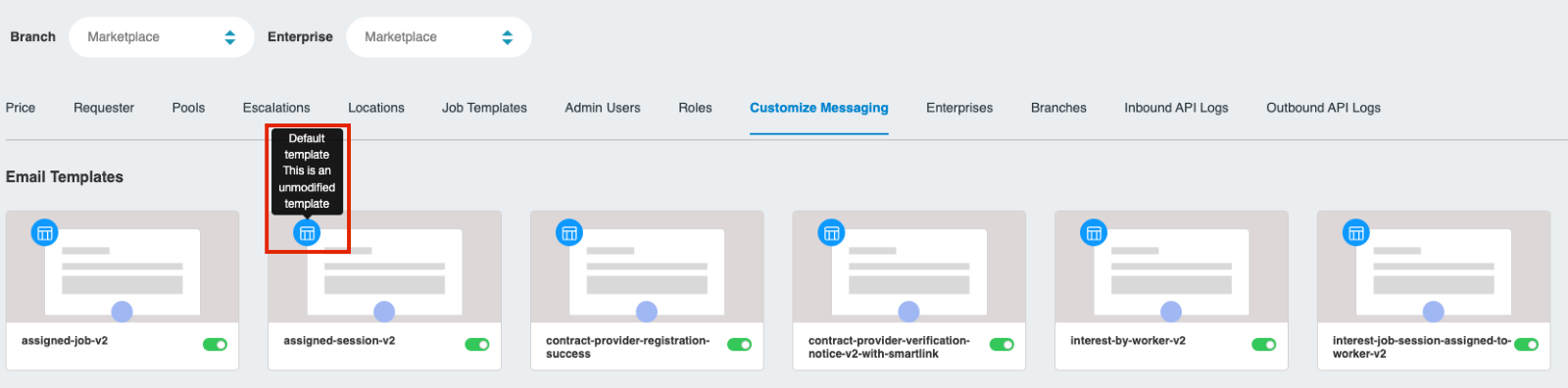
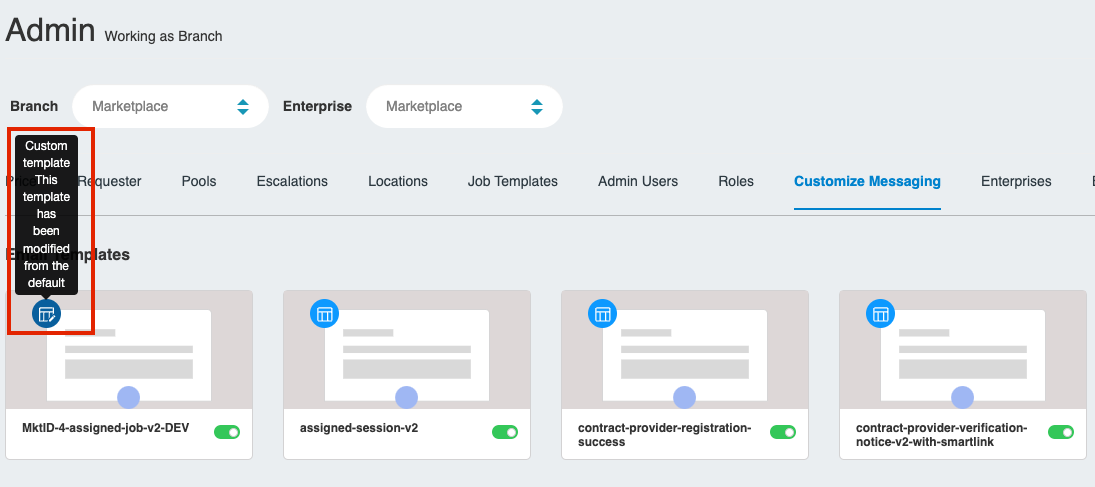
Hovering over the blue icon on the template will let you know if the template has been edited or not. If no changes are made to the template, then the default text is what will send out if the template is enabled.
If changes are made to the default template, the icon will appear in dark blue to indicate it is a custom template.
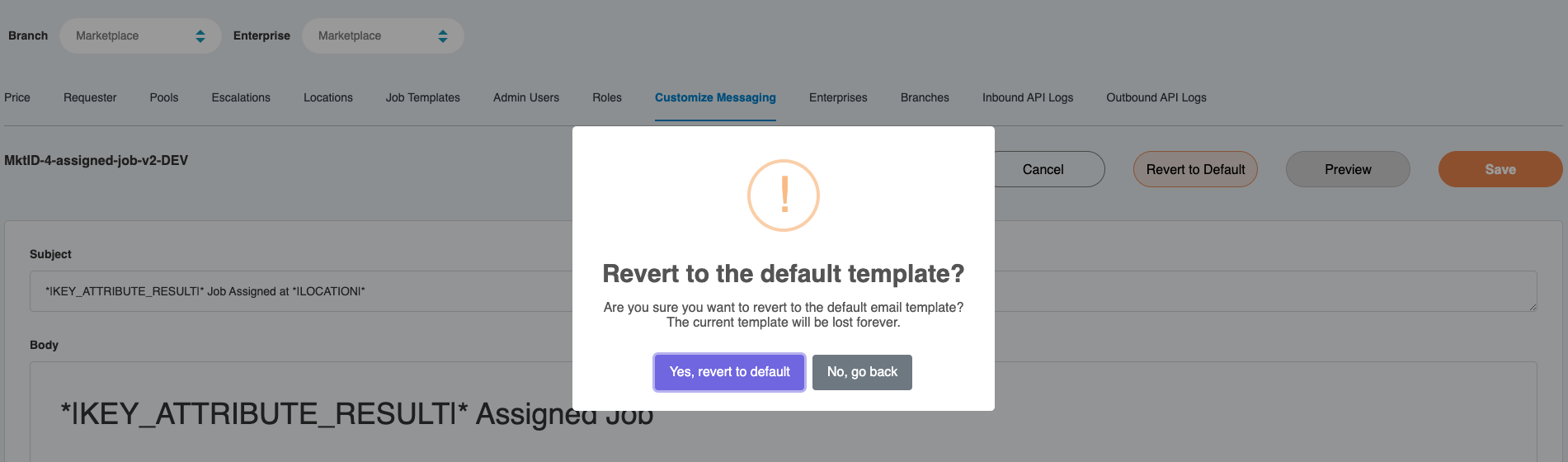
Within the template editor, you have the ability to restore the default template.
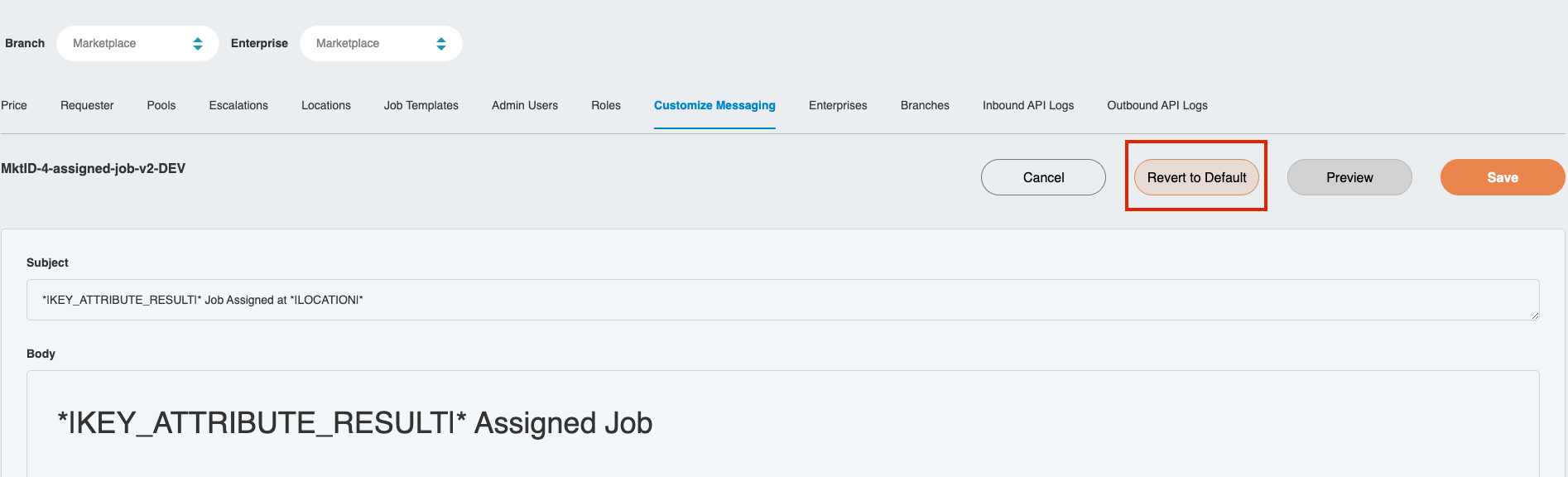
Note: When restoring a template to default, the customized template will be lost and not able to be applied again.
Disabling Notifications
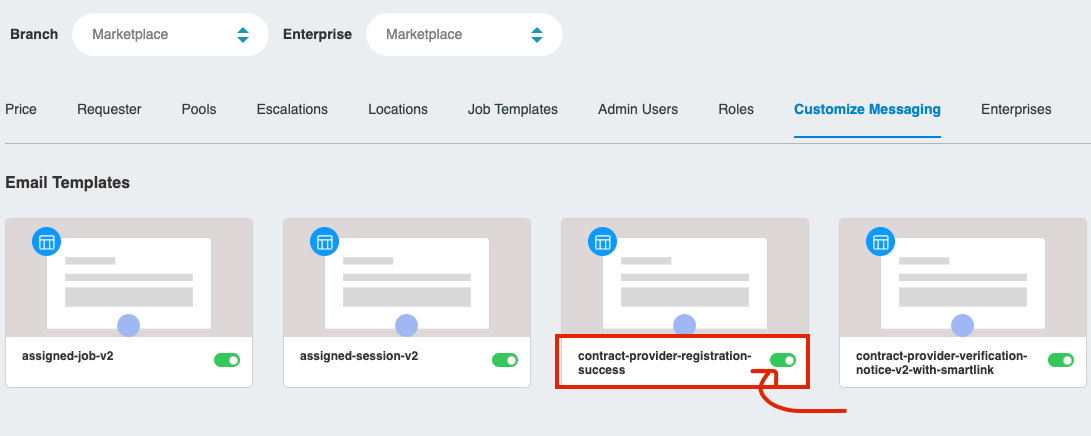
By default, all notifications will be toggled on. There is the ability to turn each notification on or off with a toggle on the bottom right. If a template is toggled off, it will no longer send out.
Editing Notification Templates
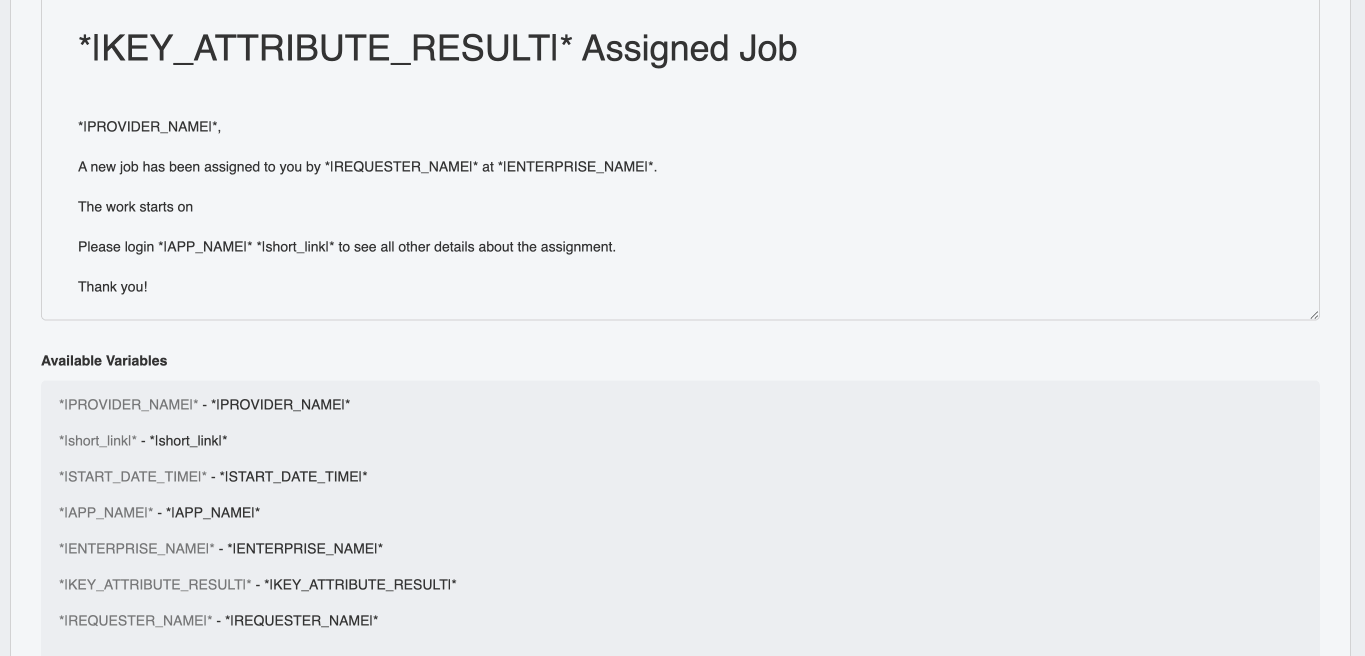
The notification editor is broken into two parts:
- Editable text - Any editable text can be customized to your liking
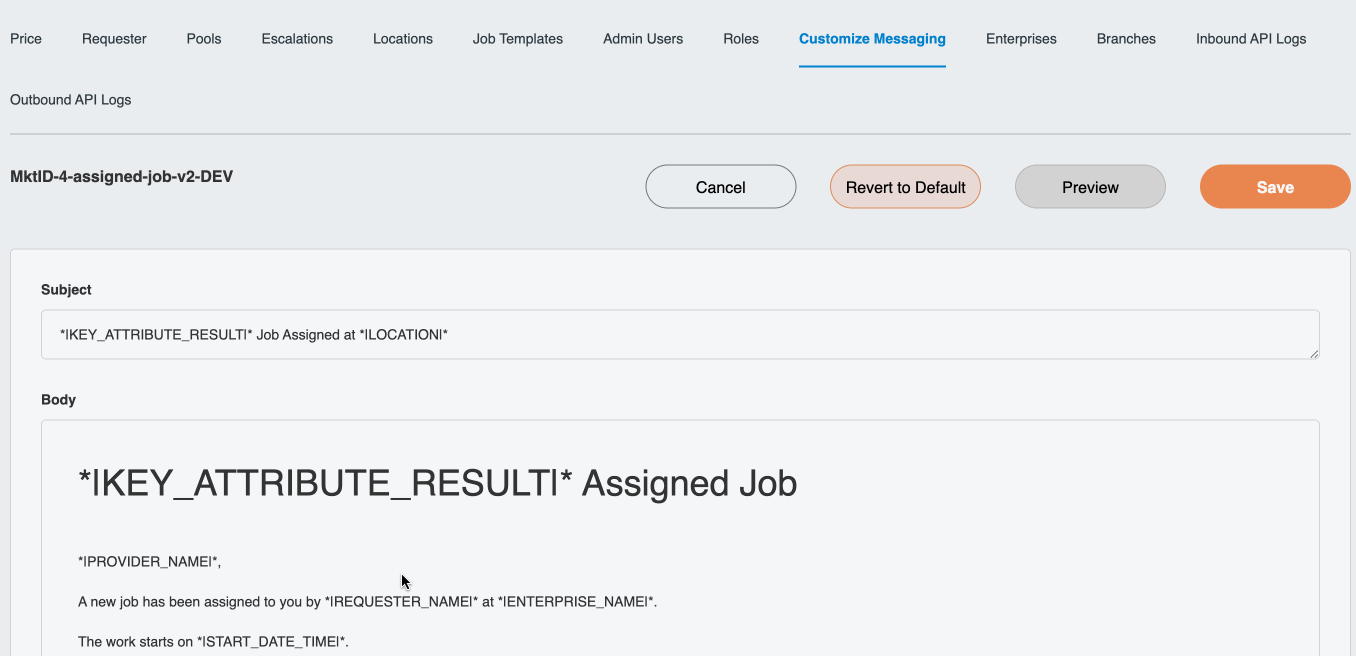
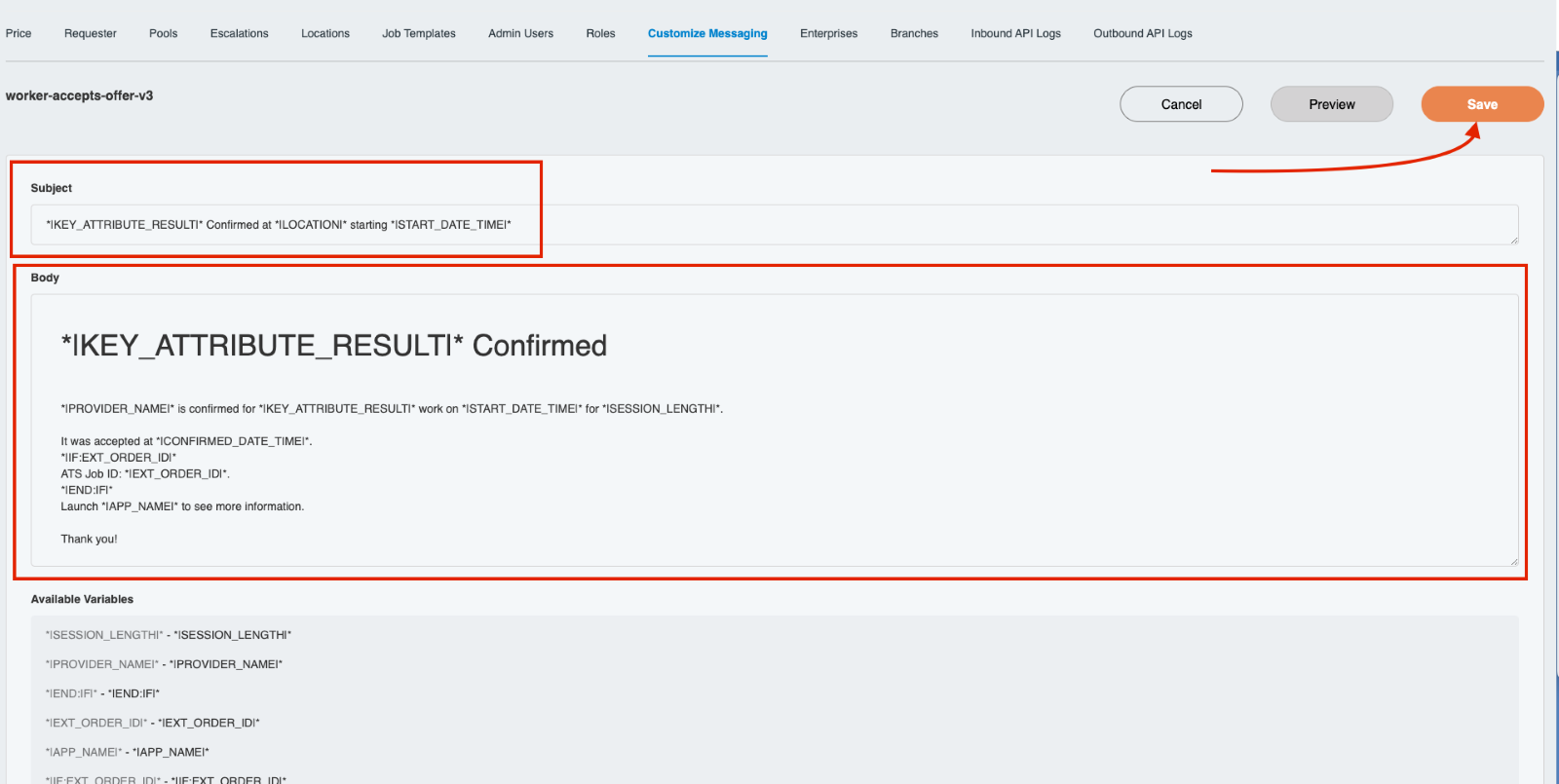
- Variables - Any words between the |word| are variables and are not editable. Any other words are editable text that can be modified.
Available Variables
Variables are placeholders that are replaced by specific values from the database when the communication sends to the talent.
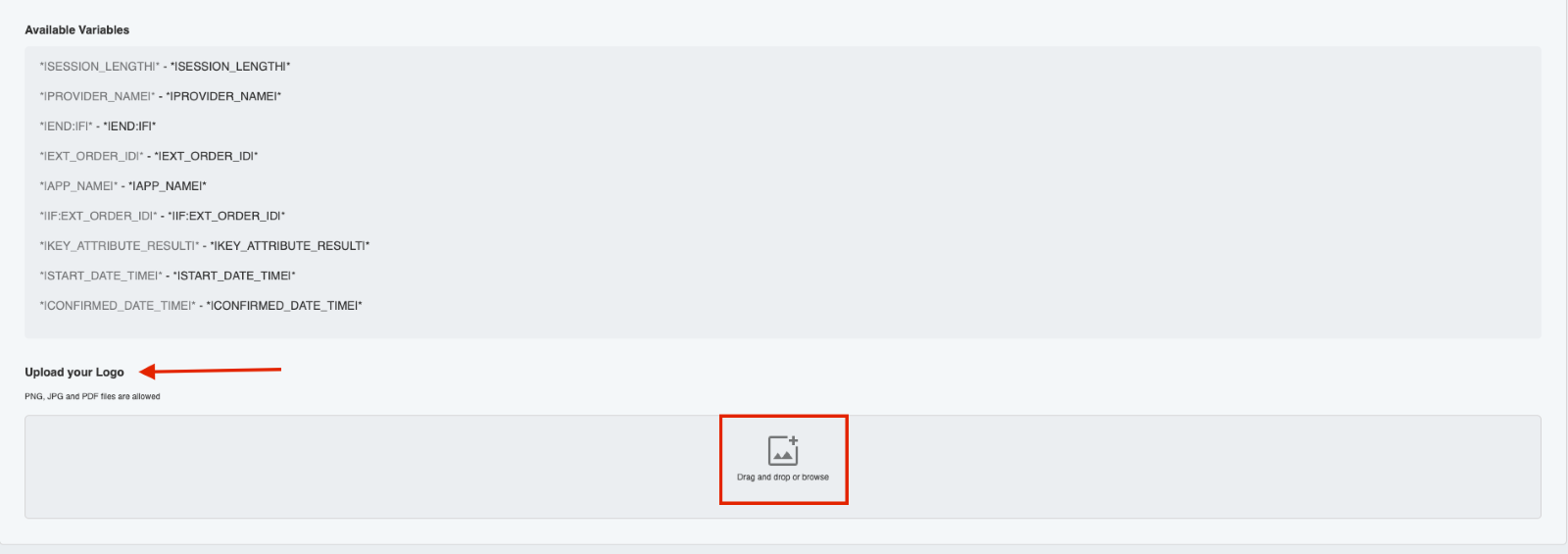
To use a variable in the template, copy the light grey text and paste the specific one you are needing into either the subject line or the body of the text.
Template Actions
When finished, choose to Cancel, Preview, or Save the template in the top right:
- Cancel: When clicking cancel, any changes you made will not be saved. If needed, rather than clicking the back button, click "Cancel" to return to the list of templates.
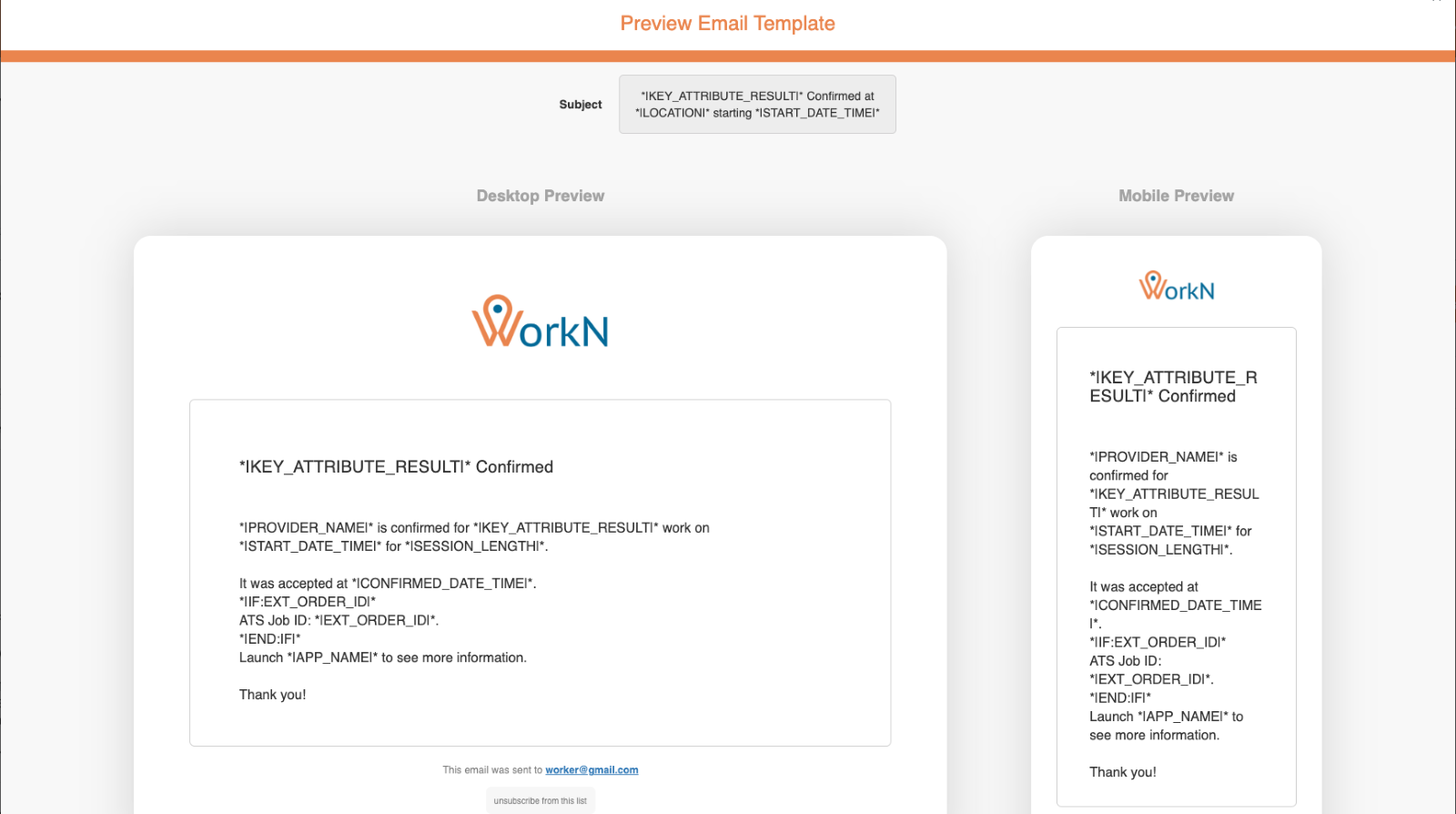
- Preview: When clicking to preview your message, you will be taken to a window to preview your email template. A desktop and mobile preview will display allowing you to see both user experiences. When done, click cancel at the bottom to return to your template.
- Save: Once you save the changes, you will be taken to a preview window. Scroll down to confirm your changes. Once confirmed, this new custom template will now be the one used to communicate with your talent.
Email Templates
To edit a specific template, click on the desired template to open the editor.
When editing a template, you can:
- Edit the text of the subject line and body of the message
- Choose which variables you'd like to use in the template
- Add your logo to the template
Note: When removing variables, please double check that this is the desired outcome for your talent.
App Templates
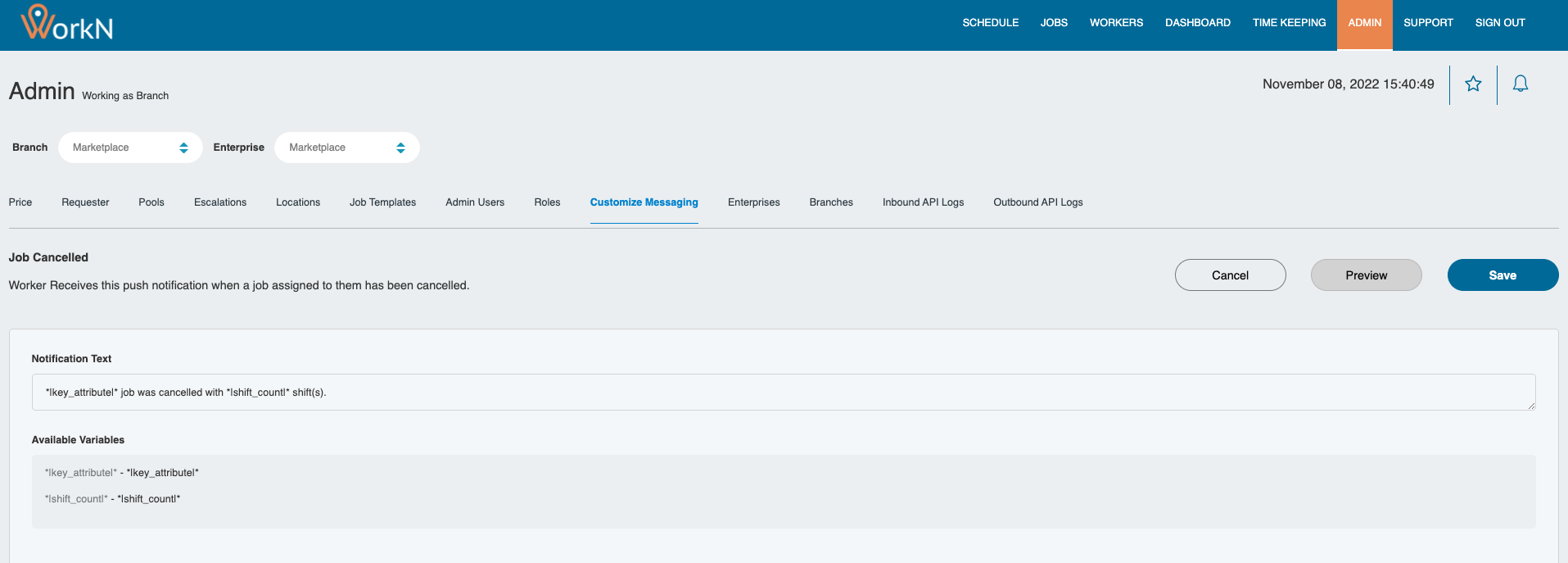
To edit a specific template, click on the desired template to open the editor. These are the communications your talent will see while in the app as app notifications.
When editing a template, you can edit the text of the app notification.
Text Templates
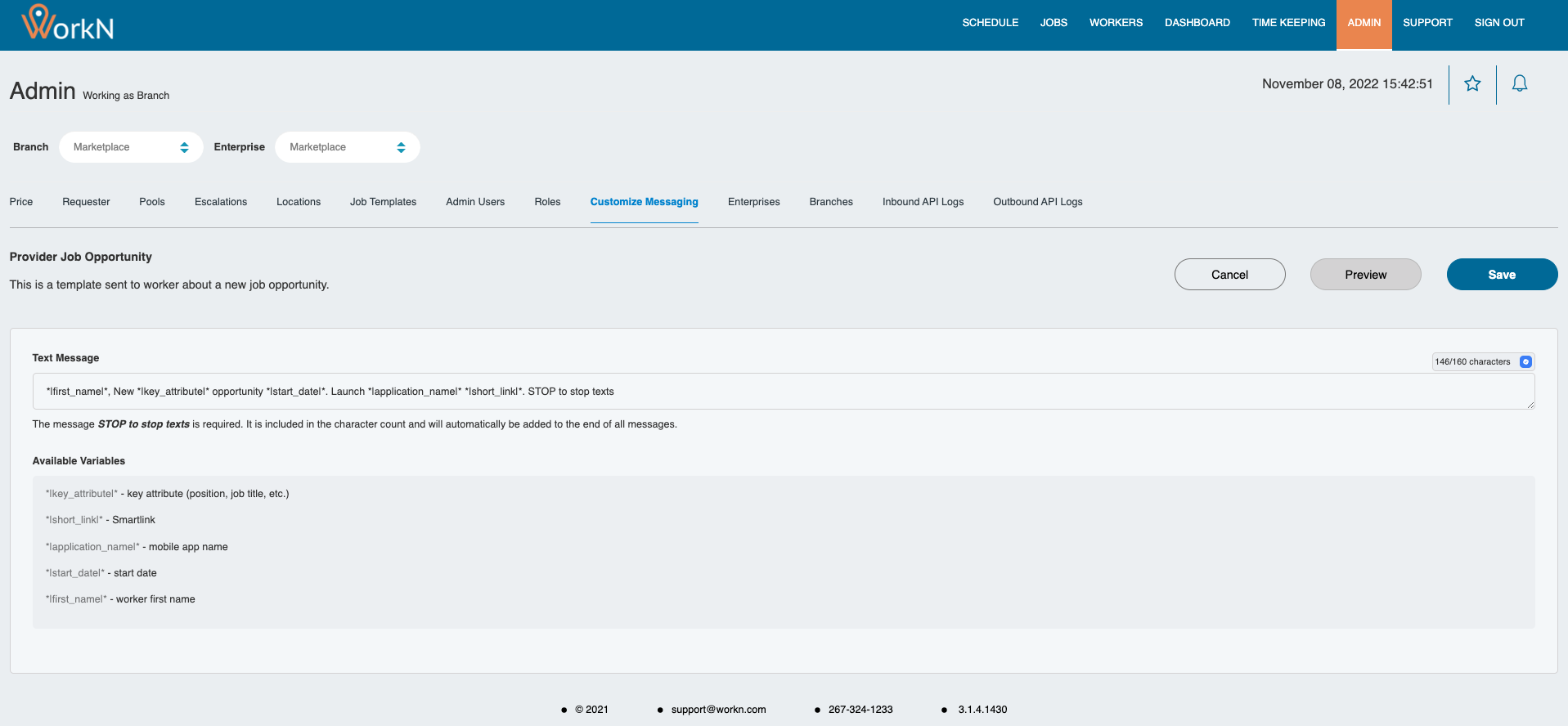
Editing the text templates is done in the text field with a 160 character limit for your texts. Any customized wording will need to be added before the link and before the word "STOP" or else it will be cut off.
Note: Variables used in the text will count as characters in the text.
Example: The name Stephanie will use 9 characters, and the name Sam will use 3 characters.
If an individual text exceeds 160 characters, the message will be split by the phone carrier as separate text messages, it is then combined into one text in the display to the talent.
However, the text will be billed as multiple texts and will affect your text billing rate.
Best Practices
Email Templates
Subject Lines: It is very much a possibility that your emails will be sent to spam if your subject line is too long. It is always best to tailor your subject lines, keeping them short and to the point.
Body Text: Try to avoid using exclamation points or words in all caps. Remember to keep it simple and to the point.
Text Templates
Text templates are best kept simple and to the point. Too much information in a text can overwhelm the recipient.
WorkN cannot guarantee that messages will not get blocked by wireless carriers. Following these best practices will improve your ability to achieve high deliverability results to wireless users.
Note: Texts do support emojis as long as they are placed before the "STOP" language.
Updated about 1 year ago