
Admin Tab | Roles
Each admin role consists of a list of Roles (aka: Privileges) that grant permission to be able to access information and perform certain actions depending on if the role is enabled/disabled to do so.
Overview
In this article you will find how to access admin roles on the WorkN Web Portal as well as how to enable or disable admin permissions and their meanings.
Why?
This provides flexibility in what each admin user can see and do.
Two Admin Users at the same level of the hierarchy may not be able to access the same information and/or perform the same actions if they are assigned different Roles.
How to Access
You can access Admin Users in the Web Portal by navigating to Admin > Admin Users > Role
By default, your account was set up with three admin roles:
- Super Admin - This user should have the most permissions available as the highest tier of user
- Recruiter - This user is typically a recruiter level admin. Suggested permissions would be to allow actions, but not allow the deletion of data
- Client User - This user is typically the staffing firm's client. If your staffing firm allows your clients to enter their own jobs through the web portal, then this restricted tier would be the role you would want to give them
Role Permission Meanings
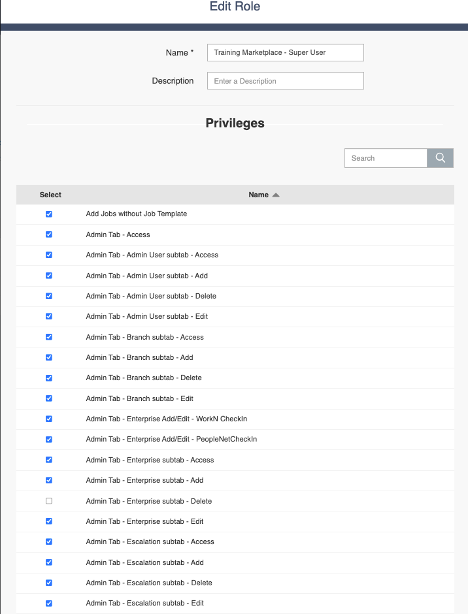
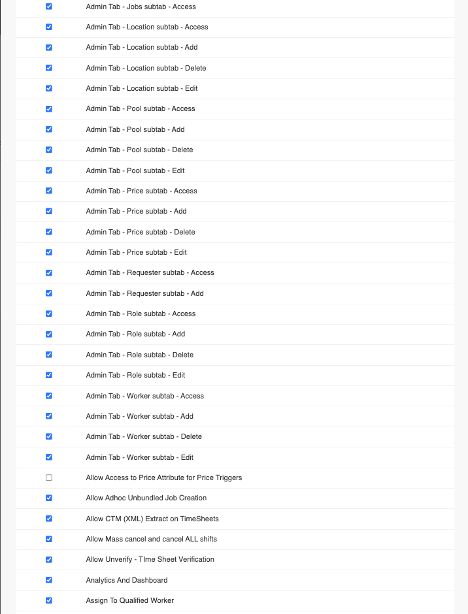
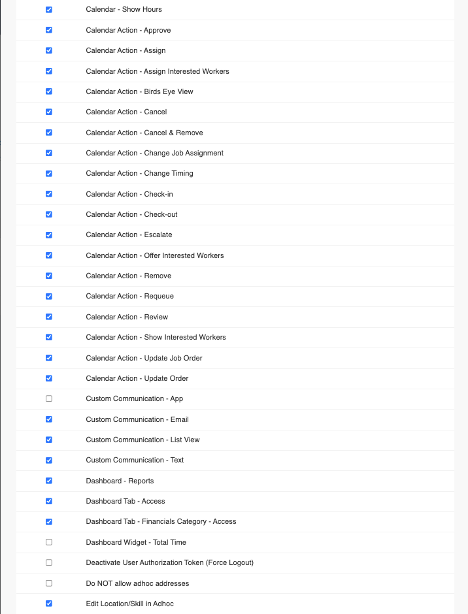
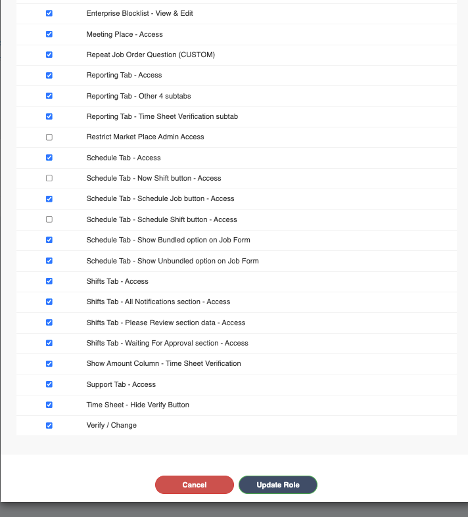
Roles permissions control the tabs/sub tabs the user can see on the portal page. Also the superuser can control/edit the access ability for each role permission (add/edit/delete/access).
Super User
This access allows the most control and edit options within the portal. Each check option is described below for details:
- Access - See the selected tab options in the portal
- Edit - Able to edit users
- Add - Able to add users
- Delete - Able to delete users


Main Tab Permissions
Admin Tab - Access to Admin tab on the top right
- Sub Tabs permissions include Price, Requester, Pools, Escalation, Locations, Job Templates, Admin Users, Roles, Customize Messaging, Enterprises, and Branches
- Able to give access for add, edit, delete, and access for each sub tab for the role specified
Worker Tab - Top right corner

- Allows to edit, add, delete, and access worker/talent profiles
Schedule Tab - Top right corner

- Allows Calendar actions: Schedule/Show hours, Approve and Assign worker, cancel, change job assignments, change times, check in/check out, escalate, show workers and status of workers, customer communications
Dashboard Tab - Top right corner

-
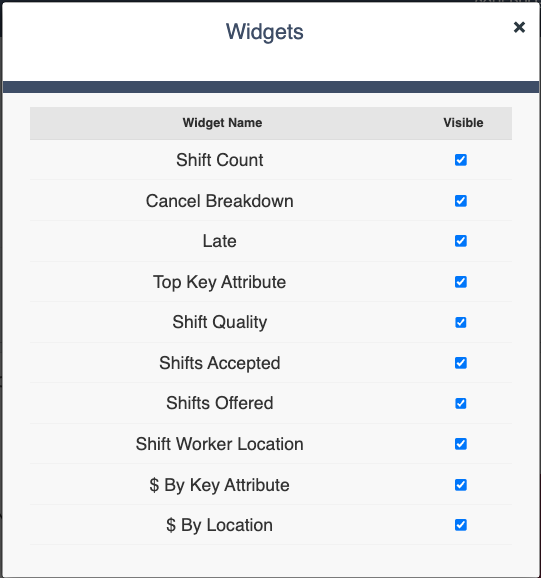
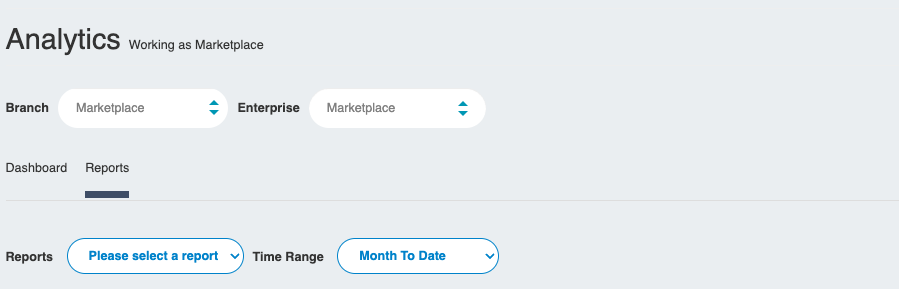
Allow to see overview of analytics and set widgets for the dashboard. Also this is where you can see the reports options
Time Keeping - Top right corner
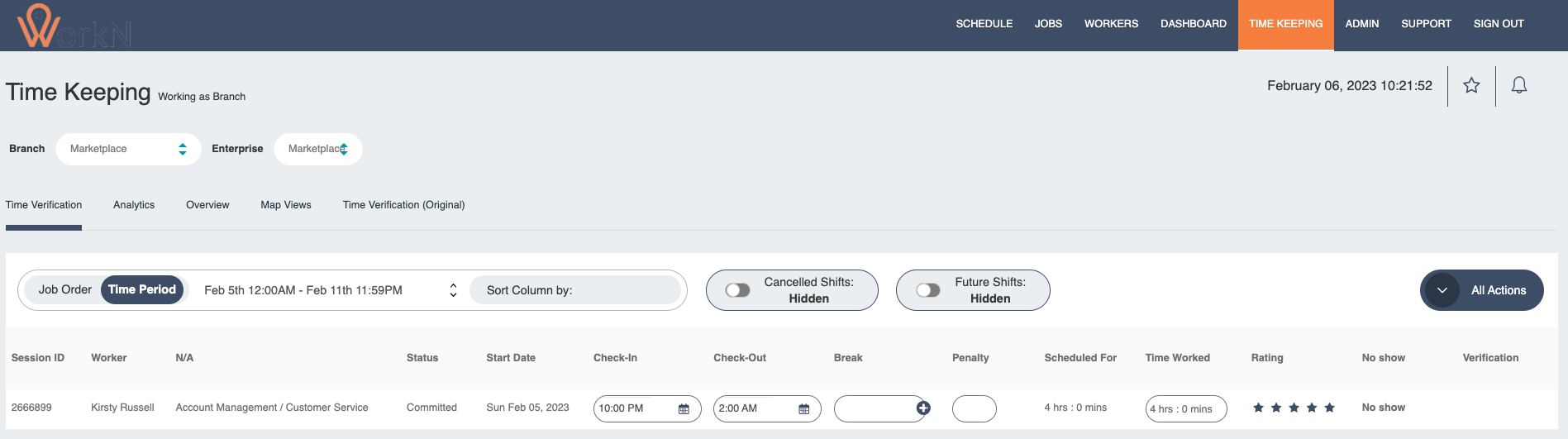
- Allows user to manage time keeping for workers. Reports can also be run for timekeeping for workers. You can rate workers here. Also, user is able to verify and update the workers time if any change is needed
Admin Log Off and Password Security Features
In order to increase security and reduce the risk of unwanted actions, we've enhanced our customers' ability to manage access to the WorkN web portal and to mobile apps.
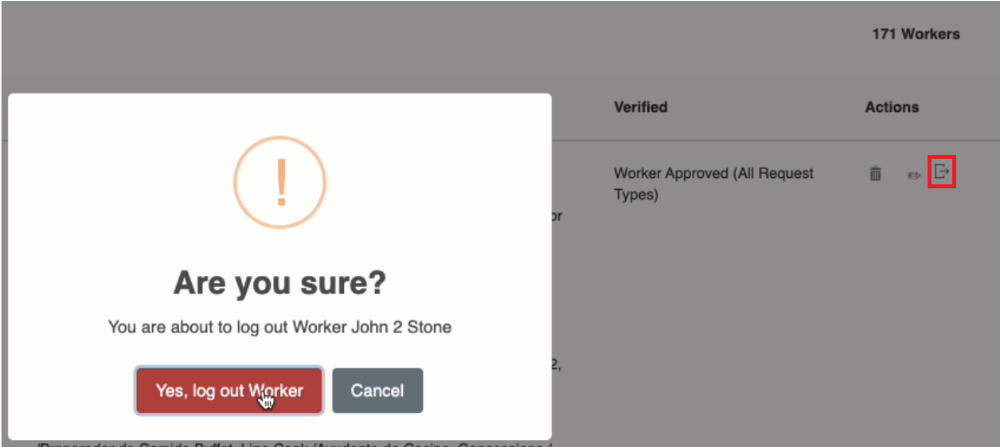
- Admin users with the privilege Deactivate User Authorization Token (Force Logout) can now force log off any other admin or worker
- When an admin or recruiter password has been manually updated via the WorkN Web Portal, they will be logged off automatically, and must login again using their new password
- When a worker password has been manually updated via the WorkN Web Portal, they will be logged off automatically, and must login again using their new password or a Smartlink
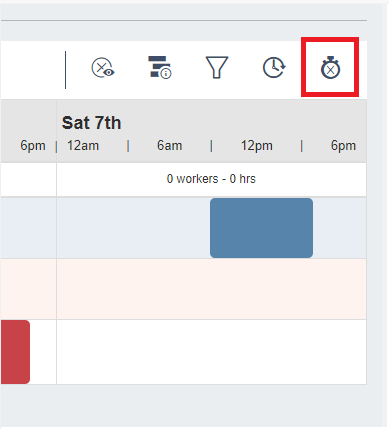
Allow Mass Cancel and Cancel ALL Shifts
Customers can now turn off the "Mass Cancel" and Cancel All Remaining Shifts feature.
When this privilege is disabled for a user, they will not see the Mass Cancel Button and when canceling a single shift, the Warning Screen asking if they want to cancel all remaining shifts in a job will not be displayed.
This is separate from the Privilege that controls cancelling a single shift.
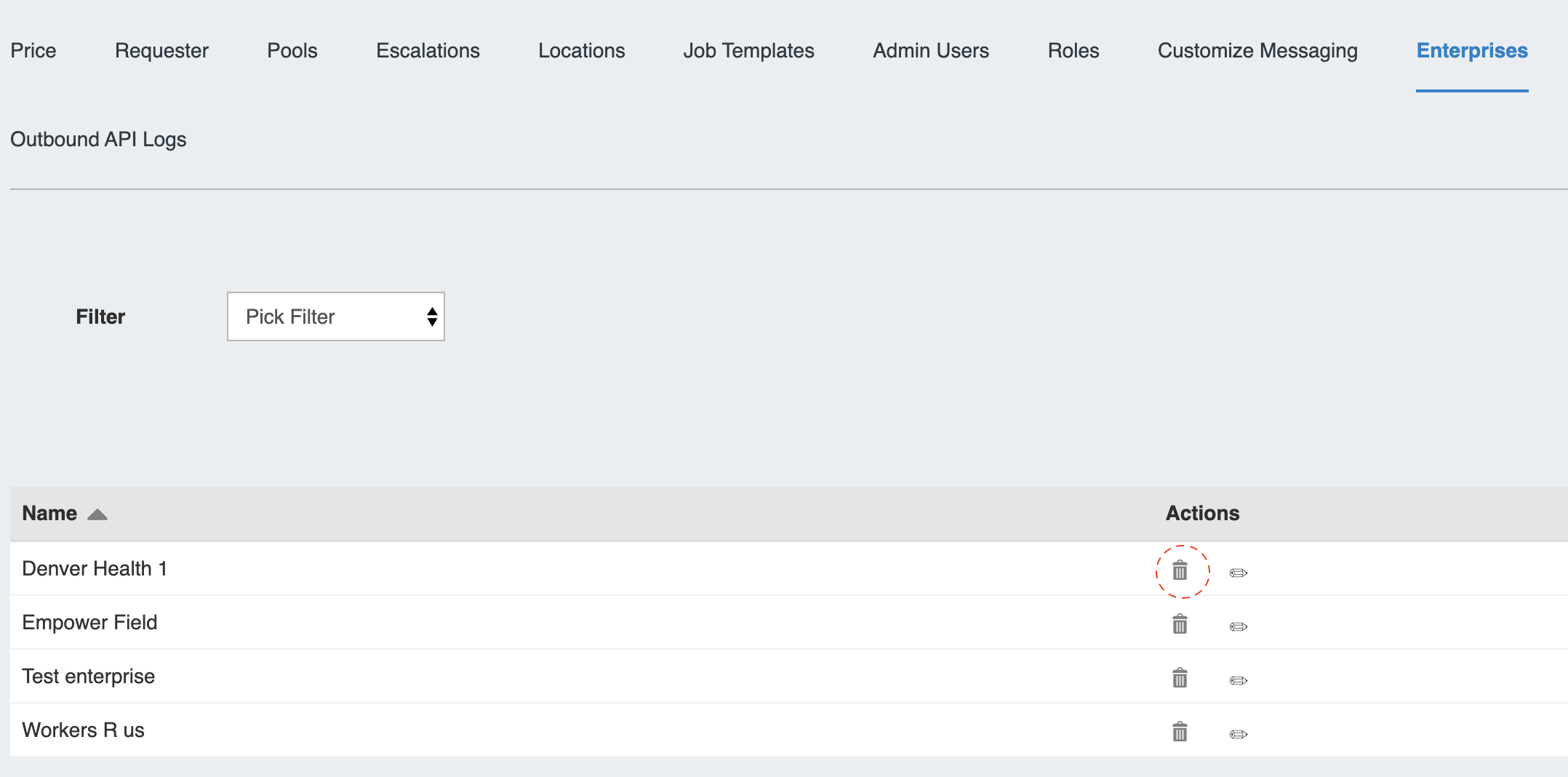
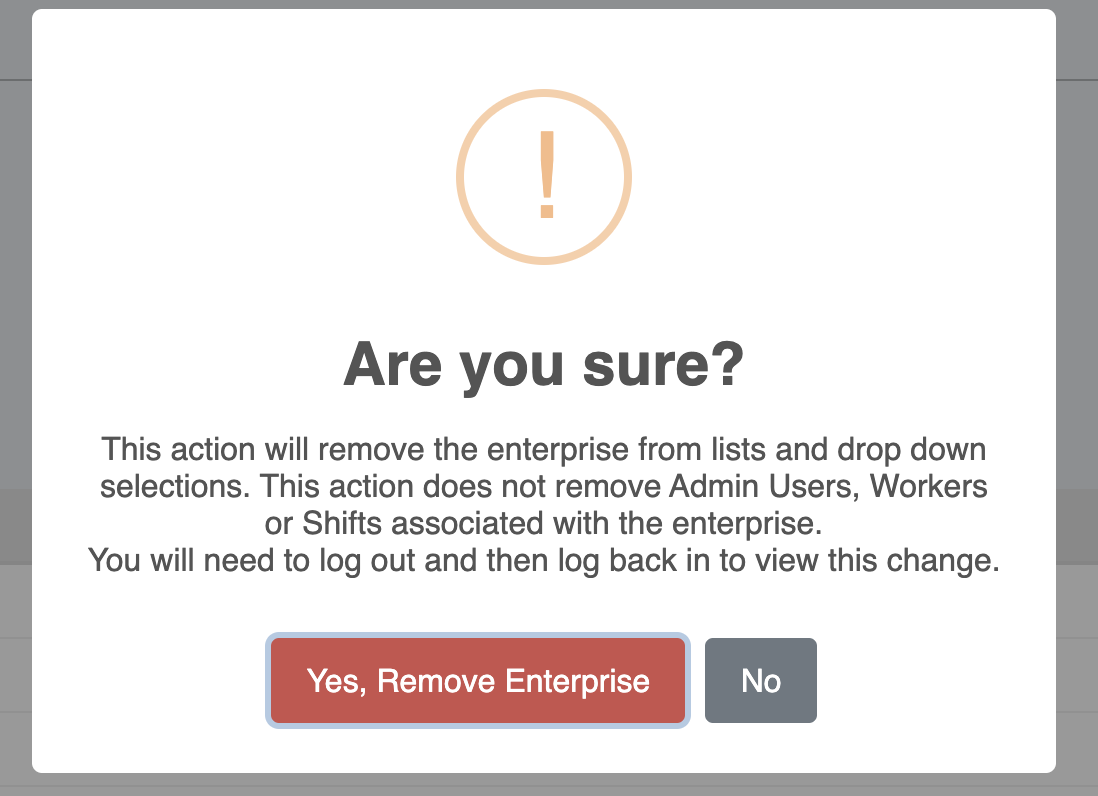
Admin Tab – Enterprise Subtab - Delete
There are many reasons why an enterprise may no longer be needed, we have added a way to remove these enterprises that are no longer needed. This action is only accessible by users with a new Role Privilege, and does not remove data associated with the enterprise.
Updated about 1 year ago