
Admin Tab | Admin Users
This document provides a comprehensive guide to Admin Users functionality within the WorkN platform, including user types, permissions, and setup procedures.
User Type Definitions
Admin
General term for any user accessing the web/desktop version of WorkN. Admins can exist with varying permissions at Marketplace, Branch, and Enterprise levels.
Branch Admin
Admin with access to all Enterprises under a specific branch. These are typically recruiters who manage multiple client accounts within their assigned branch.
Enterprise Admin
Desktop user with permissions for a specific Enterprise only, without top-level Marketplace access. Enterprise Admins are used for scheduling work at the customer level and cannot see other Enterprises or Branches. These are typically client/customer users.
Marketplace Admin
Desktop user with top-level Marketplace permissions. May be configured as a Dispatcher to serve as central approver for job requests across all Enterprises.
Creating New Admin Users
Access Requirements
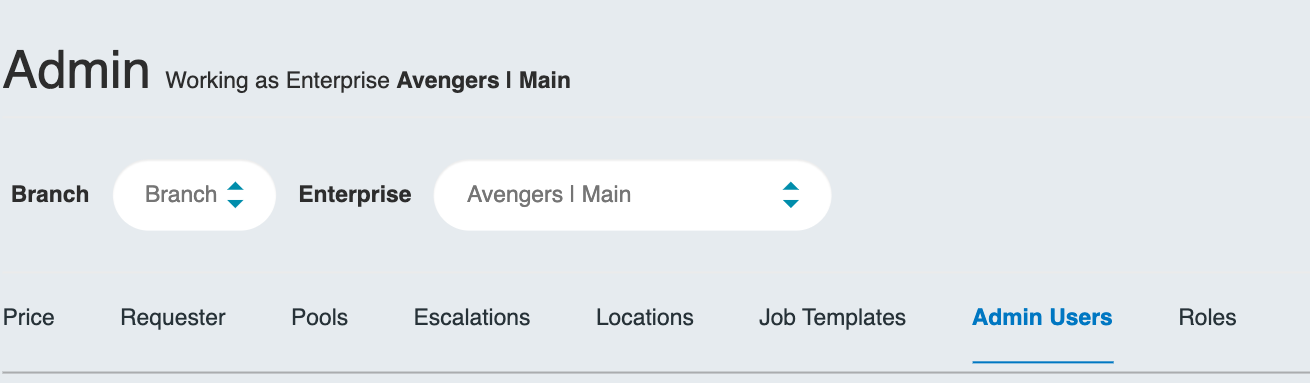
Admin creation is performed through the Admin Users sub-tab within the Admin page. Admin permissions are determined by the Branch and Enterprise selections active when creating the user.
Permission Levels
- Marketplace Admin: Both Branch and Enterprise set to "Marketplace"
- Branch Admin: Specific Branch selected, Enterprise set to "Branch"
- Enterprise Admin: Specific Enterprise selected
Setup Process
- Navigate to Admin Users within the Admin section
- Ensure correct Branch/Enterprise filter is selected
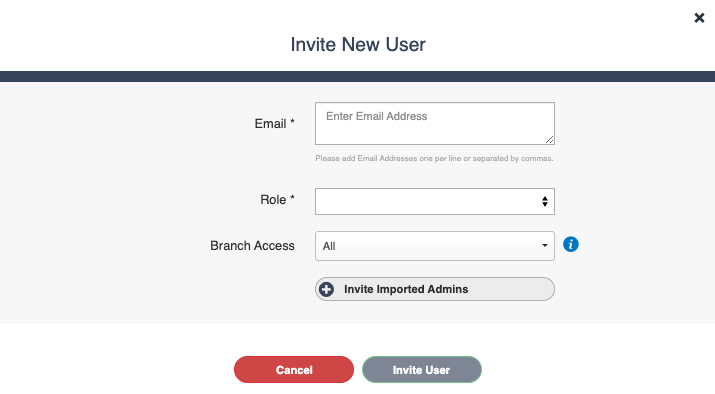
- Click 'Add User'
- Complete the user form:
- Email: User's email address
- Role: Select appropriate permission role
- Branch Access: Define scope of access
Note: The "Invite Imported Admins" option is for ATS-integrated clients who have imported admin users from their ATS system.
Role Assignment Guidelines
For New Client Users
New client admin users should typically receive the Enterprise Admin role unless a custom role has been created specifically for clients.
Role Selection Considerations
- Marketplace Roles: Only for internal organization users requiring visibility across all clients and workers
- Enterprise Roles: For internal employees, client users, or anyone primarily focused on work scheduling
Roles should have clear, descriptive names to ensure consistent permission assignment.
Role Management
Understanding Permissions
Role permissions dictate what actions Admin users can perform. The two most common roles are:
- Marketplace: Full system access across all clients and workers
- Enterprise: Focused on scheduling and client-specific functions
Permission Review
To understand role-specific permissions:
- Access the Roles sub-tab in the Admin Panel
- Review existing role configurations
- Contact your WorkN System Admin for clarification when needed
Best Practices
- Clear Naming: Use descriptive role names for easy identification
- Consistent Application: Apply similar roles consistently across similar user types
- Regular Review: Periodically audit user permissions to ensure appropriate access
- Documentation: Maintain records of role purposes and permissions
This systematic approach to admin user management ensures appropriate access control while maintaining operational efficiency.
Admin Users Password Reset
Overview
Admin users occasionally encounter situations where password retrieval becomes necessary. This guide presents a straightforward password recovery process designed for admin users.
Key Takeaways
- Admin users can easily recover forgotten passwords through a step-by-step guide tailored to their needs, including accessing the password recovery option, providing the admin email address, and setting a new password
- The process ensures security compliance by guiding users to create a strong password, and in case of non-compliance, prompts specific resolutions, providing a smooth and efficient recovery experience
- Admins receive confirmation messages and a dedicated support team is available to assist promptly, ensuring a hassle-free restoration of account access
Step 1: Accessing the Password Recovery Option
When encountering the web portal login screen, admin users can find a link labeled "Forgot my password" tailored to their needs. Click on this link to initiate the admin-specific password recovery process.
Step 2: Providing the Admin Username
To proceed, the admin username is required for sending a password recovery email. Enter the admin username and submit it to move to the next step.
Step 3: Confirmation and Password Recovery Email
Upon submission, the system confirms the action and sends a Password Recovery Email to the admin's email address. This indicates acknowledgment of the request and the dispatch of the recovery email.
Step 4: Setting the New Password
To regain access, open the password recovery email and follow the link to a page for setting a new password.
Admin User Password Entry
Enter the new password in the provided fields, following the instructions.
Matching Password Verification
Verify that the entered passwords match.
Step 5: Password Compliance and Security
Specific password requirements are in place for admin users. Guidelines are displayed during password entry to ensure compliance.
Your unique password should be:
- At least 7 characters long
- Containing a mixture of upper and lowercase letters
- Containing at least one special character
- At least 1 numeric character
Step 6: Password Non-Compliance Resolution
If the chosen password falls short of compliance standards, the system prompts that the password is not strong enough and what to include in the unique password.
Step 7: Successful Password Reset
Upon entering a compliant password, the system notifies the successful reset, granting access to the account.
Updated about 1 year ago