
Jobs | Overview
How to Add a Job Order
Overview
Visibility Level: Marketplace and Enterprise / Client
Job orders are the primary method for requesting and scheduling work through the WorkN platform. This guide covers creating both bundled and unbundled job orders.
Prerequisites
Jobs must have a Start Date and Start Time at least 15 minutes in the future. Jobs scheduled in the past will not process.
Creating a Job Order
Basic Setup
-
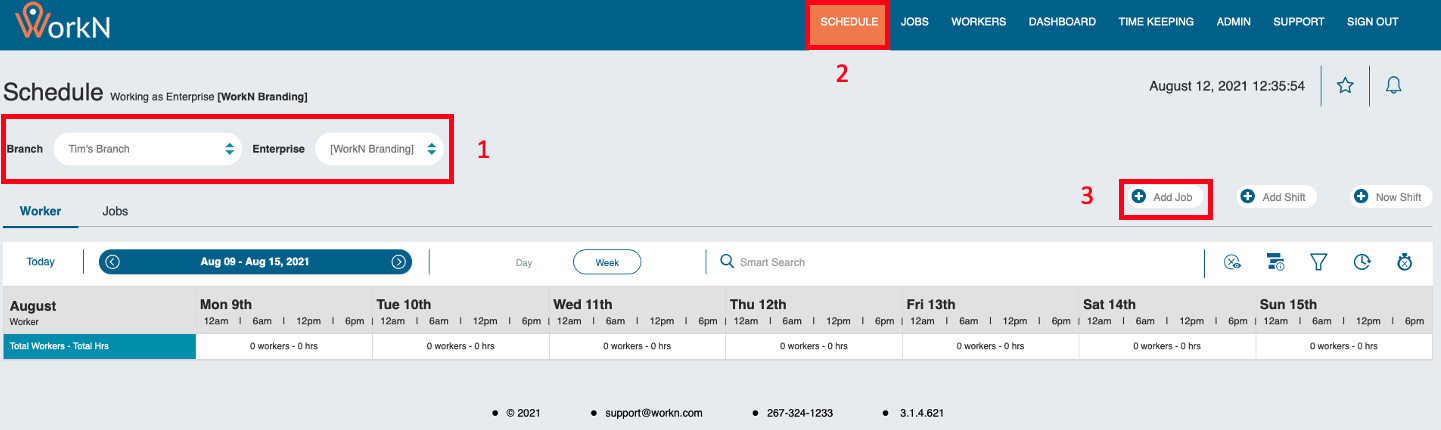
Log into your Marketplace and navigate to the appropriate branch and enterprise level
-
Click 'Schedule' in the top navigation
-
Click '+Add Job'
-
Complete the job form using the guidelines below
Form Fields
Required vs. Matching Fields
- Required Fields (*): Must be completed for job submission
- Matching Fields (✓): Must match worker profiles for job qualification
- Examples: Skills, availability, location, work site
Use job templates when available to reduce setup time.
Job Order Types
- Bundled: All shifts must be accepted by one person
- Unbundled: Multiple people can pick up individual shifts
Job Distribution Types
-
Schedule: Direct assignment to specific worker(s)
- Implies prior worker coordination
- No recruiter intervention required
-
Offer: First-come, first-served model
- Auto-acceptance for matching workers
- No recruiter intervention required
-
Interest: Gauge worker interest before assignment
- Requires recruiter review and selection
- Workers express interest, then recruiter chooses final assignments
Escalation Settings
Determines how jobs are distributed:
- Dynamic: Send to all workers matching criteria
- Pool: Send to specific worker subgroup
- Only workers in the selected pool who match criteria will receive offers
- Pool must be created before use
- Offer Picklist: Manual selection of specific workers
Submission
After completing all required fields and configurations, click 'Submit Request' to notify workers.
Ad Hoc Scheduling
Ad Hoc Scheduling enables creation of multiple shifts with different start/end times that workers can individually select.
Setup Process
-
Create an unbundled job order as normal
-
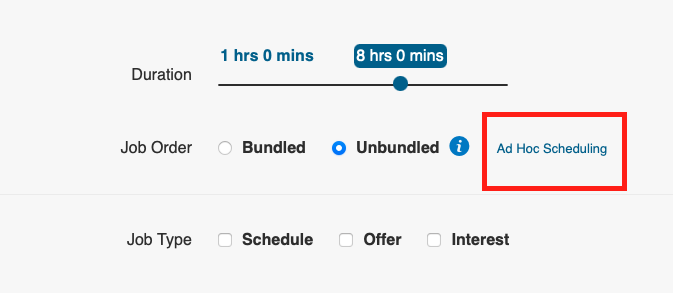
Click "Ad Hoc Scheduling" next to the "Unbundled" option
-
Configure each shift with:
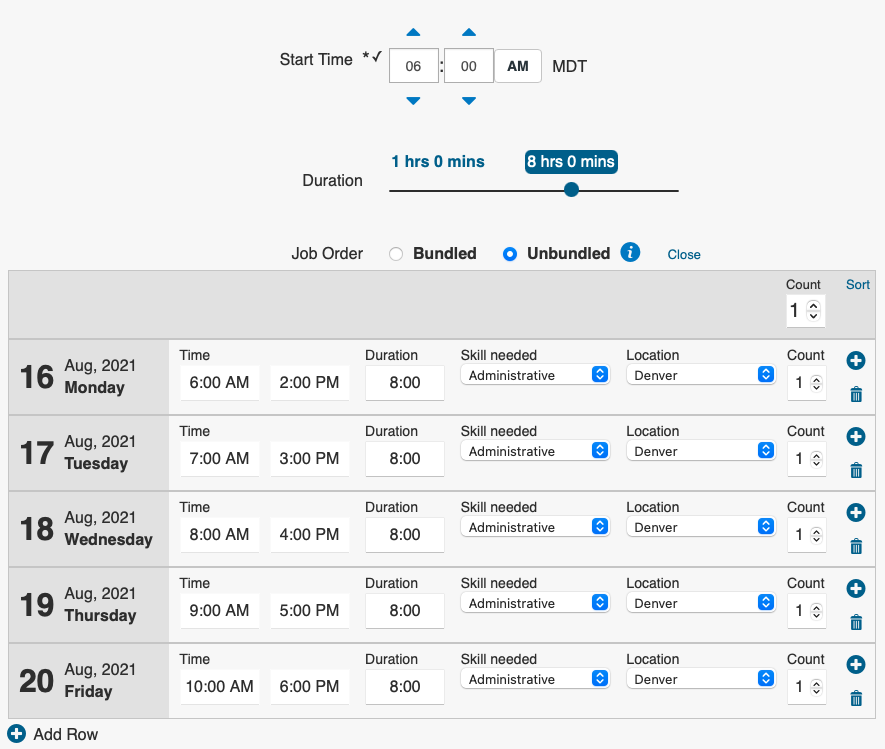
- Time and duration
- Position requirements
- Location details
- Worker count
Limitation: Ad Hoc Scheduling will not work if "Job Title" is configured as a key attribute.
Worker Experience
Qualified workers will see available shifts in the WorkN app and can select their preferred time slots.
Birds Eye View Scheduling
For complex scheduling needs, the Birds Eye View provides a visual interface for assigning workers to specific shifts.
Access and Usage
-
Navigate to Schedule tab
-
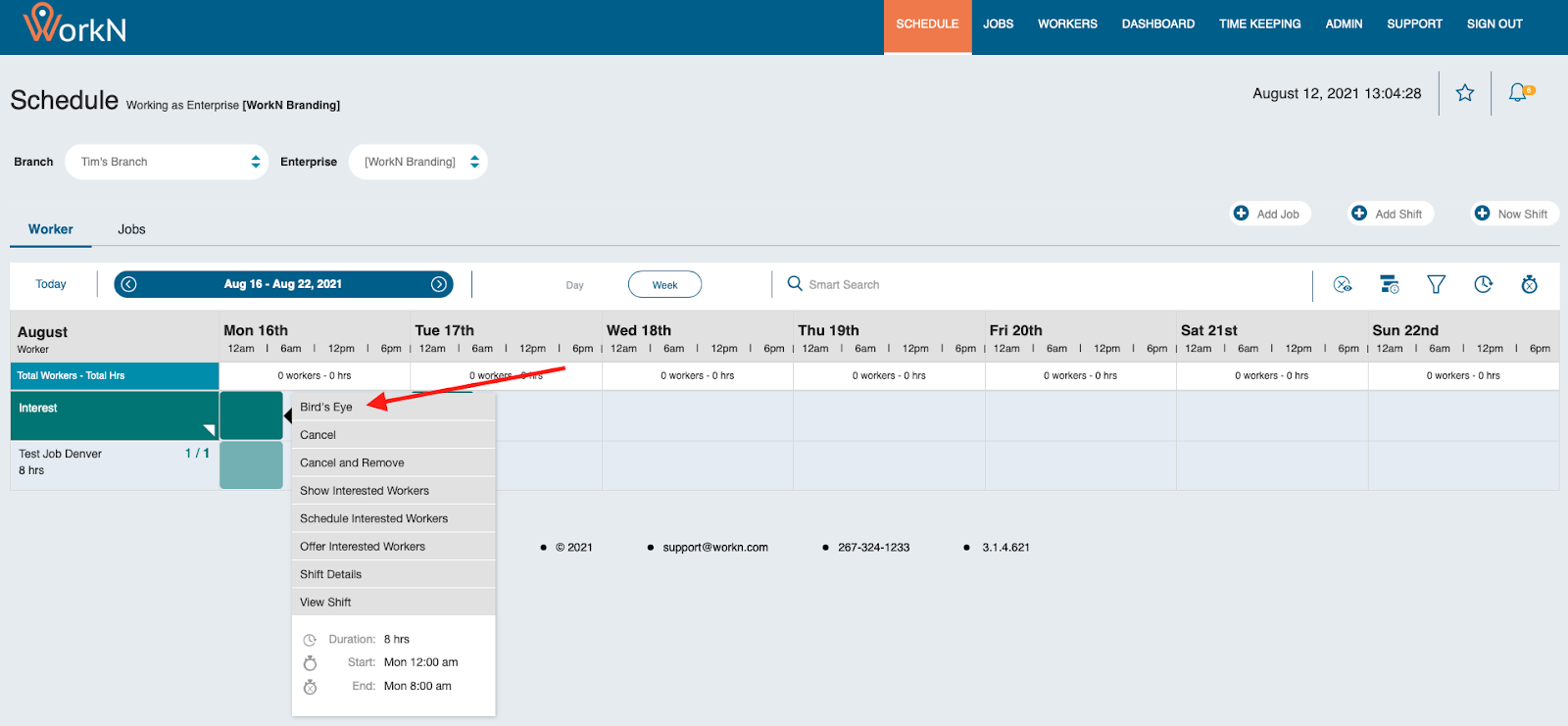
Click on pending shift
-
Select 'Bird's Eye'
-
Assign workers using the '+' icons

-
Submit assignments
Availability: Birds Eye View is only available for interest, unbundled, and ad hoc job offers.
Best Practices
- Lead Time: Provide adequate notice for worker response
- Clear Requirements: Specify all necessary skills and qualifications
- Appropriate Distribution: Choose escalation method based on urgency and worker pool
- Follow-up: Monitor responses and adjust as needed
How to Schedule or Offer Work
Overview
Visibility Level: Enterprise
The Schedule feature allows you to view and manage job assignments, track worker responses, and handle shift management at the enterprise level.
How to View the Schedule
-
Log into your Marketplace and navigate to the appropriate branch and enterprise level
-
Click 'Schedule' in the top navigation
-
Use the available options to customize your view:
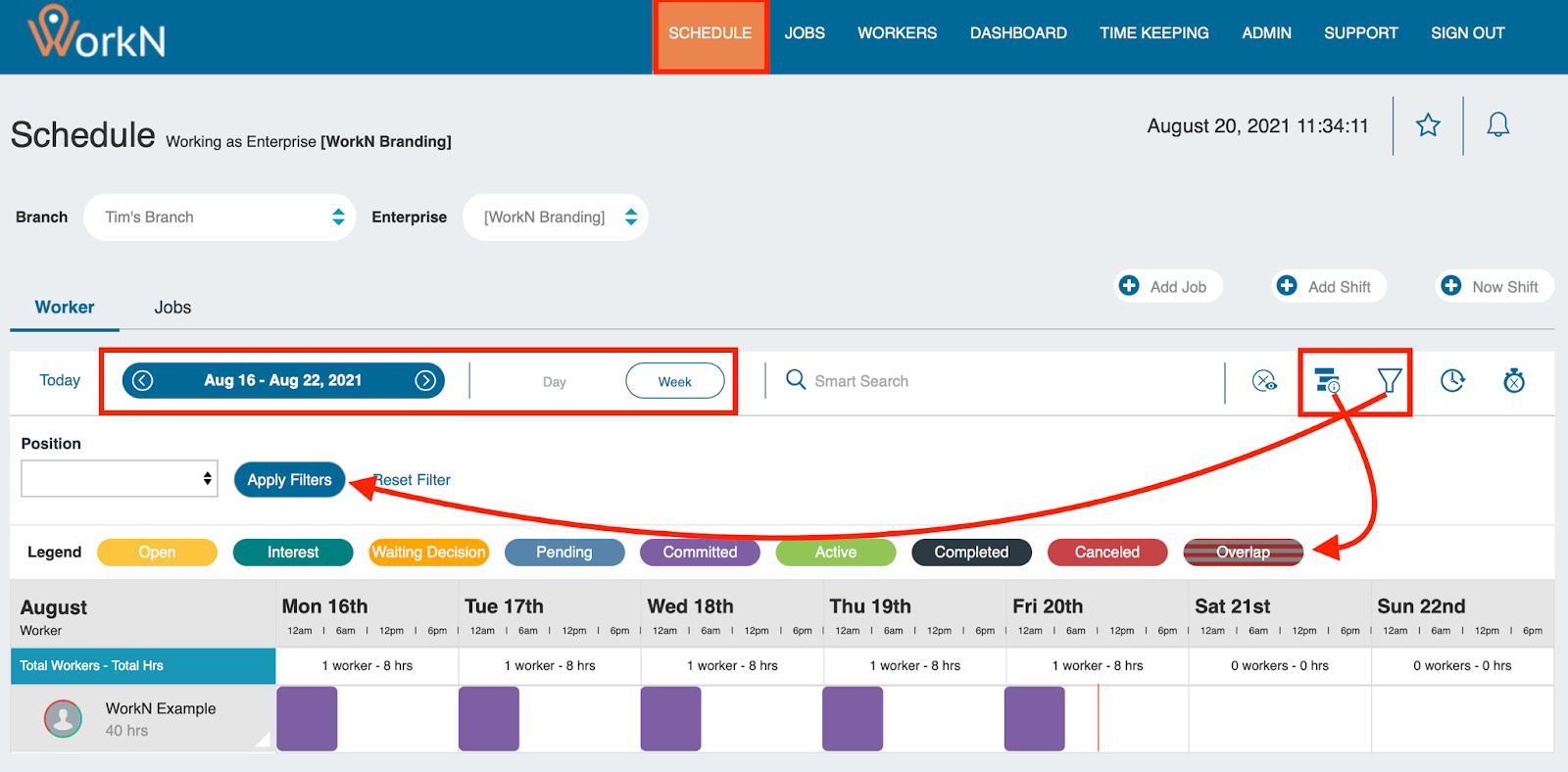
- Date Range: Select specific dates to view
- View Type: Choose between day or week schedule views
- Search: Find specific jobs or workers
- Filters: Apply additional criteria
Managing Shifts
Understanding Shift Status
The color legend shows different shift statuses, allowing you to quickly identify:
- Pending shifts
- Confirmed assignments
- Completed work
- Cancelled jobs
Shift Management Options
When you click on a colored shift, you can:
- View Tracking: See all workers who were notified of the job
- Cancel: Remove the job from workers' view
- Show Interested Workers: View workers who expressed interest (for 'interest' job types only)
- Schedule Interested Workers: Commit interested workers to the job
- Offer Interested Workers: Allow interested workers to accept and be committed to the job
- Shift Details: Review job specifications
- View Shift: See the posted shift information
Job Order Types
The system handles two main job order types differently:
- Offer Jobs: When workers accept these jobs, committed shifts appear in real-time on the schedule
- Interest Jobs: Require recruiter intervention to either schedule interested workers or offer the job for acceptance
Schedule Navigation
Use the schedule interface to:
- Navigate between different date ranges
- Switch between day and week views
- Search for specific jobs or workers
- Apply filters to focus on relevant shifts
- Export schedule data when needed
The schedule provides a comprehensive overview of all job assignments and their current status, enabling effective workforce management and coordination.
How to Add an Unbundled Job Order
Overview
Visibility Level: Enterprise / Client
Unbundled job orders allow multiple workers to pick up individual shifts from a larger job posting, providing flexibility in shift assignment and worker selection.
Creating Unbundled Job Orders
Basic Setup
-
Log into your Marketplace and navigate to the appropriate branch and enterprise level
-
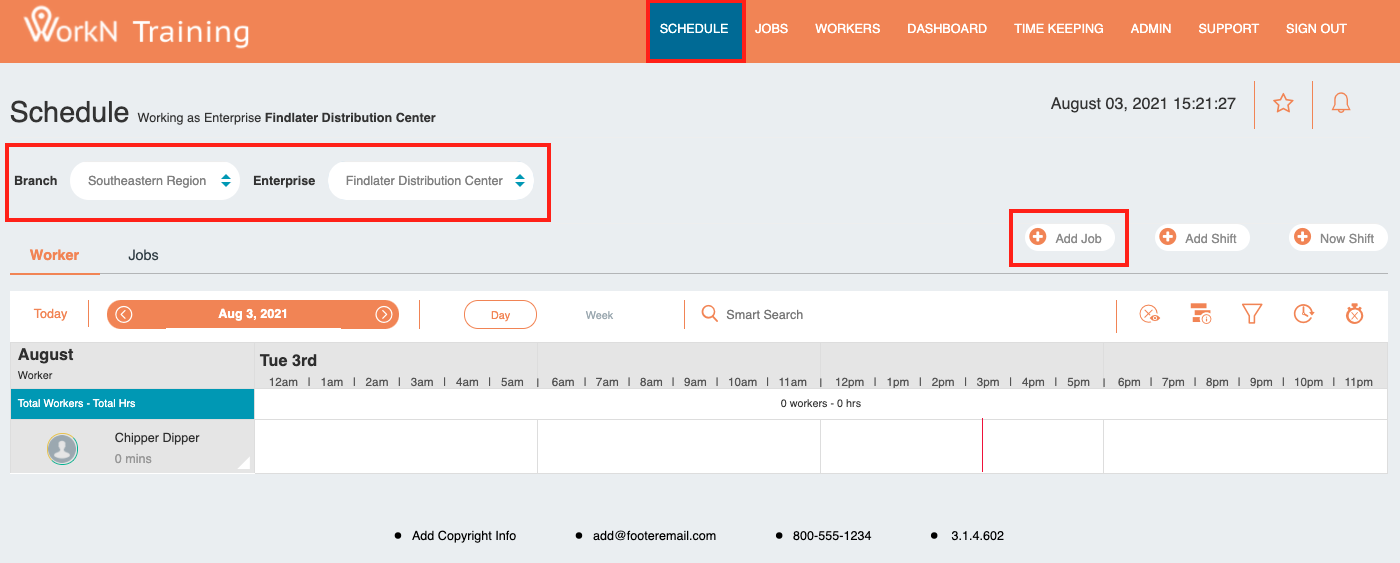
Click 'Schedule' in the top navigation
-
Click '+Add Job'
-
Complete all required fields (marked with *)
-
Use job templates to reduce setup time when available
Key Configuration Options
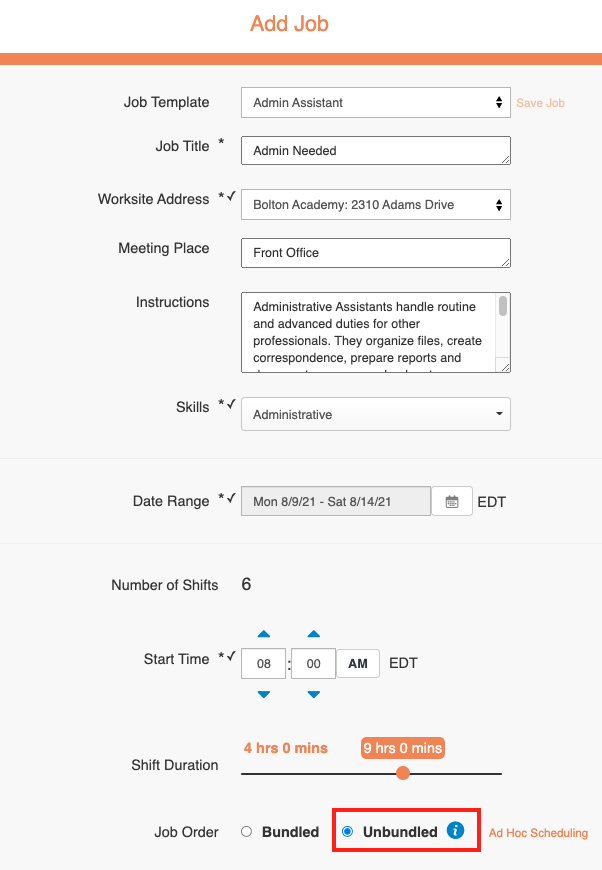
Job Order Type
- Bundled: Shifts must be accepted by one person
- Unbundled: Multiple people can select individual shifts
Number of Workers
Specify the total number of workers needed across all shifts
Job Distribution Types
- Schedule: Direct assignment to specific workers (implies prior coordination)
- Offer: First-come, first-served model with automatic acceptance
- Interest: Gauge worker interest before final assignment (requires recruiter review)
Escalation Options
- Dynamic: Broadcast to all workers matching criteria
- Pool: Send to a specific worker subgroup
- Offer Picklist: Manual worker selection
Field Requirements
- Required Fields (*): Must be completed
- Matching Fields (✓): Must match worker profiles (skills, availability, location, etc.)
Ad Hoc Scheduling
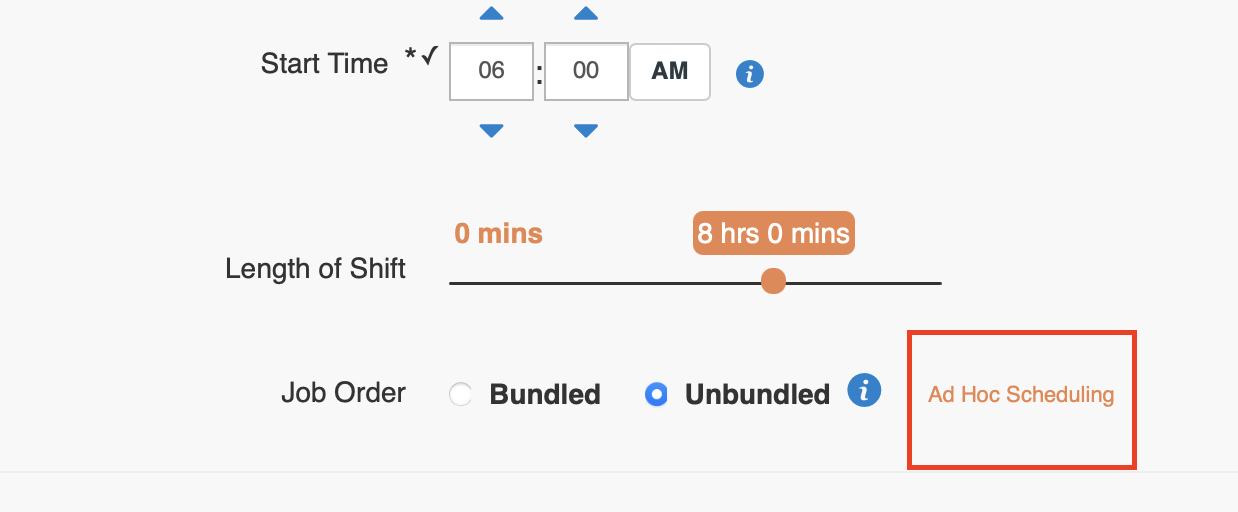
Ad Hoc Scheduling allows creation of multiple shifts with different start/end times within a single unbundled job order.
Setting Up Ad Hoc Scheduling
-
Create an unbundled job order following standard steps
-
Click "Ad Hoc Scheduling" next to the "Unbundled" option
-
Configure individual shifts with specific:
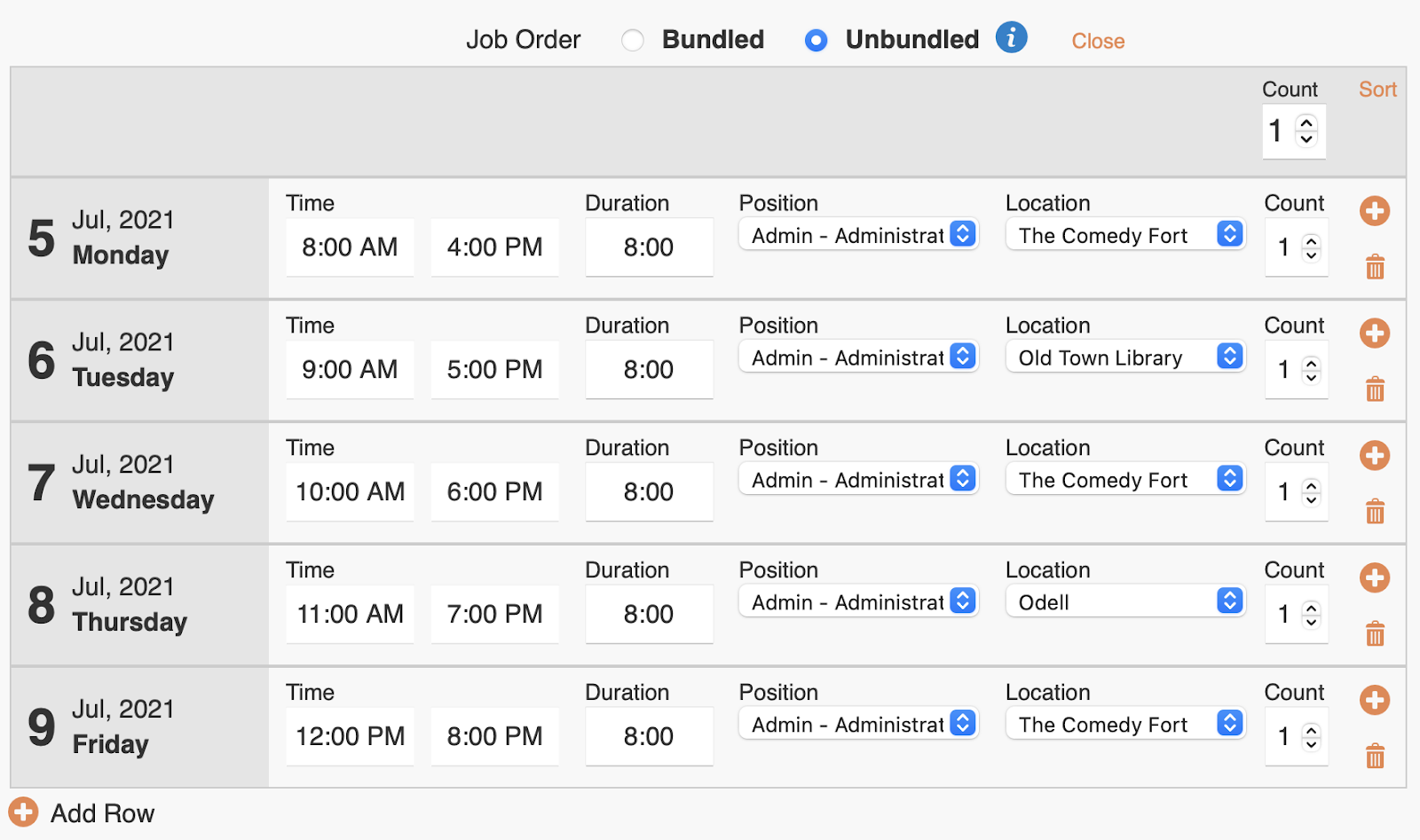
- Start times and durations
- Position requirements
- Location specifications
- Worker count per shift
Important: Jobs must start at least 15 minutes in the future to process correctly.
Note: Ad Hoc Scheduling will not function if "Job Title" is set as a key attribute.
Birds
Updated about 1 year ago