
Mobile Test Mode
Your WorkN app will connect to either your Production Environment or your Development Environment depending on whether it is in Production mode or Test mode. By default the app will be in production mode and you will need to switch to test mode.
Important Note
You will need to start by logging into your app Production environment, which the app will be in by default when you download it. Once in the app follow the instructions below based on which type of phone you have.
Instructions for iPhone
-
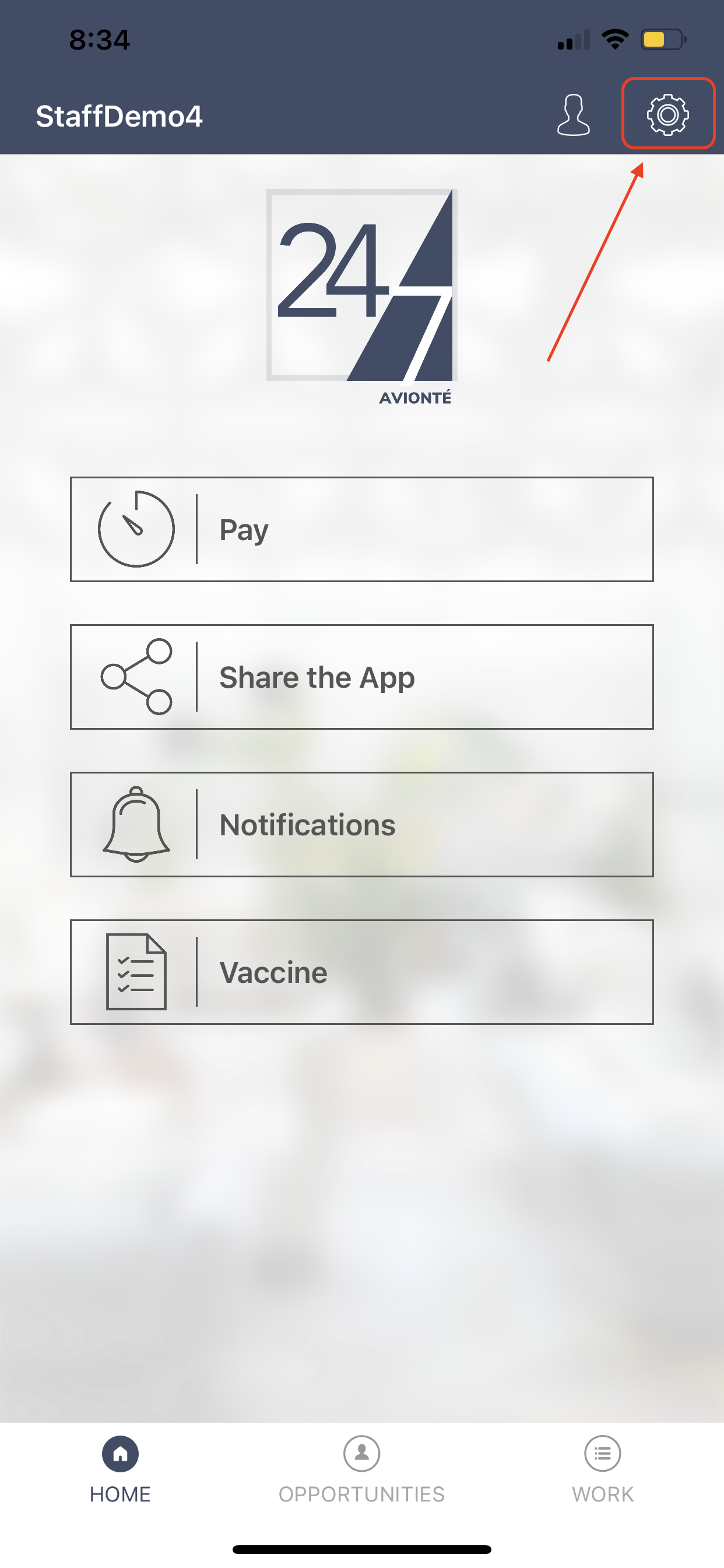
Click the settings button in the top right corner ⚙️
-
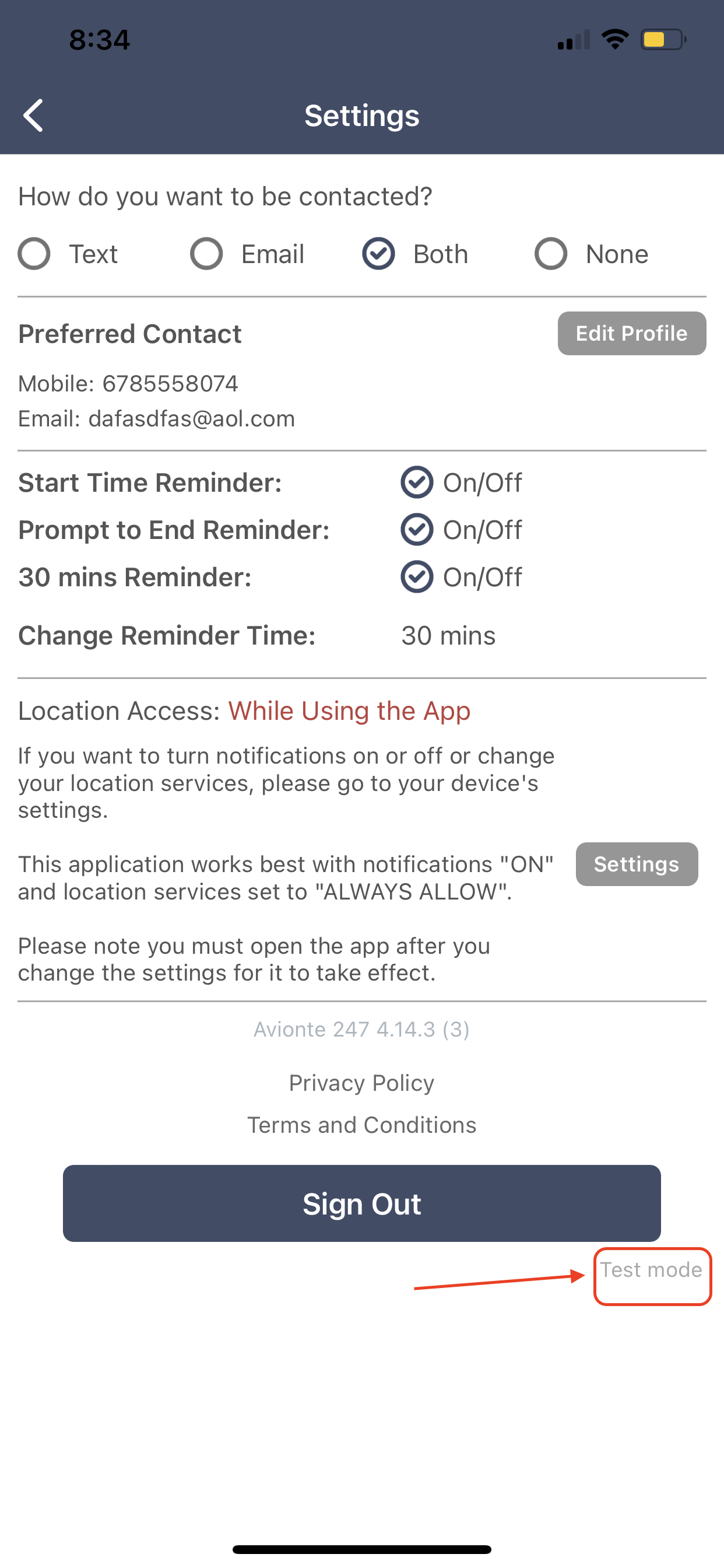
Tap the words 'Test Mode' written in tiny gray letters under the "Sign Out" button in the lower right corner
-
Your app should sign out and now show a banner stating you are in test mode now
Instructions for Android
-
Click the 3 vertical dots symbol on the top right of the app
-
Select 'Profile'
-
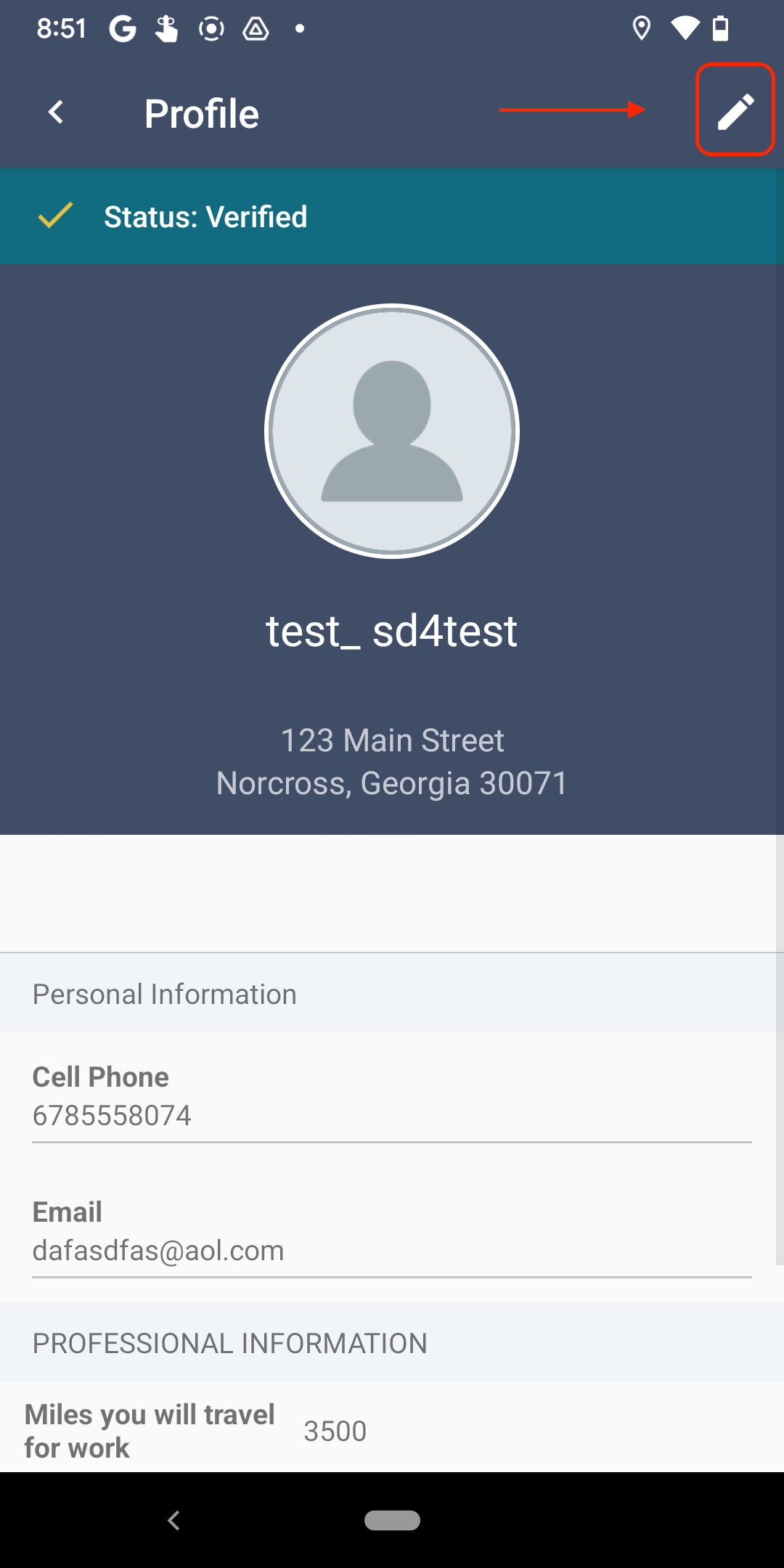
Select the Edit (Pencil) icon on the upper right-hand corner
-
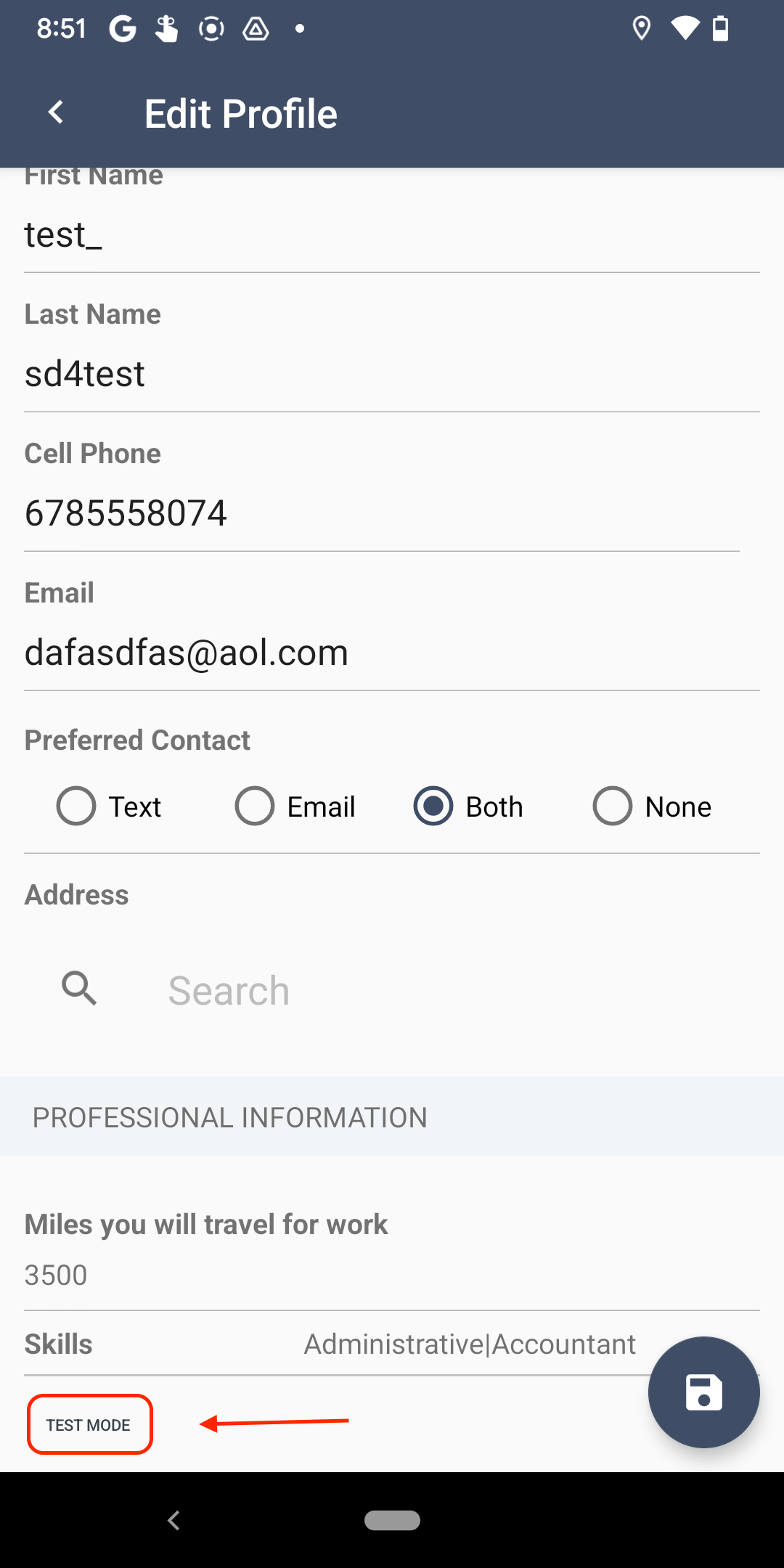
In the bottom left of the page (you may need to scroll), tap 'Test Mode' written in light grey letters
-
Your app should sign out and now show a banner stating you are in test mode
Updated about 1 year ago